Admit it, in order to analyze your data, you’ve spent hours porting data into Excel to fix/modify it, filter out irrelevant, bad or test records, enhanced the data by adding additional fields from other data sources using vlookup, added calculated fields, etc. And once tomorrow’s, next week’s, or next month’s data arrives, you have to do it all over again.
Tableau is Changing Face of ETL
At the 2016 Tableau Conference, Tableau gave a demonstration of an ETL tool called Project Maestro (as of release in April 2018 it is called Tableau Prep), which they were in the process of developing. I’ve been impatiently waiting to get my hands on it ever since. Recently, I was invited to do Alpha and Beta testing of Tableau Prep and I am excited to share with you what Tableau Prep is doing (as of Beta version 1.0) for data management.
What is Tableau Prep?
Enter Tableau Prep. In order to be able to answer questions with your data, you must have data that is accurate and clean.
Tableau Prep is an ETL tool (Extract Transform and Load) that allows you to extract data from a variety of sources, transform that data, and then output that data to a Tableau Data Extract (using the new Hyper database as the extract engine) for analysis.
How Does Tableau Prep Work?
Tableau Prep helps you examine and visualize your data, enabling you to do the following:
- Connect and extract data
- Understand data:
- Number of columns/fields in your data
- Number of records
- Data types of fields
- Number of distinct values in a field
- Visualize how the data is distributed by field
- Identify issues and errors
- Clean/Modify and Filter data
- Rename fields
- Remove fields
- Modify/change values in a field
- Split fields
- Aggregate data
- Filter out data
- Enhance data
- Add Calculated fields
- Join additional data
- Union additional data
- Output resulting data for use in analysis and reporting
And, once you get new data (as long as it is in the same format and same field names), the ETL process you created is reusable. No longer will you have to repeat the process and steps necessary to transform your data each time the source data is updated, instead the ETL process flow has all the steps and logic you built. All you need to do is re-run the flow to get the new data output, resulting in many hours saved from data processing and cleansing, which can be used for analysis instead!
Tableau Prep is fairly intuitive, allowing you to visually see the steps of your ETL process from extracting data from the source(s), to data profiling, modifying and enhancing, to output. It uses common functionality such as drag and drop, double click to edit, and drop down menus to select actions to be performed.
Connect to Your Data
As mentioned previously, Tableau Prep allows you to extract data from numerous sources:
- Microsoft Excel
- Text File
- Amazon Aurora
- Amazon Redshift
- Aster Database
- Denodo
- EXASOL
- Google Cloud SQL
- HP Vertica
- Kognitio
- MemSQL
- Microsoft SQL Server
- MySQL
- Oracle
- Pivotal Greenplum Database
- PostgreSQL
- Teradata
Once connected to your data, you can:
- See field names in the data
- See sample values of those fields
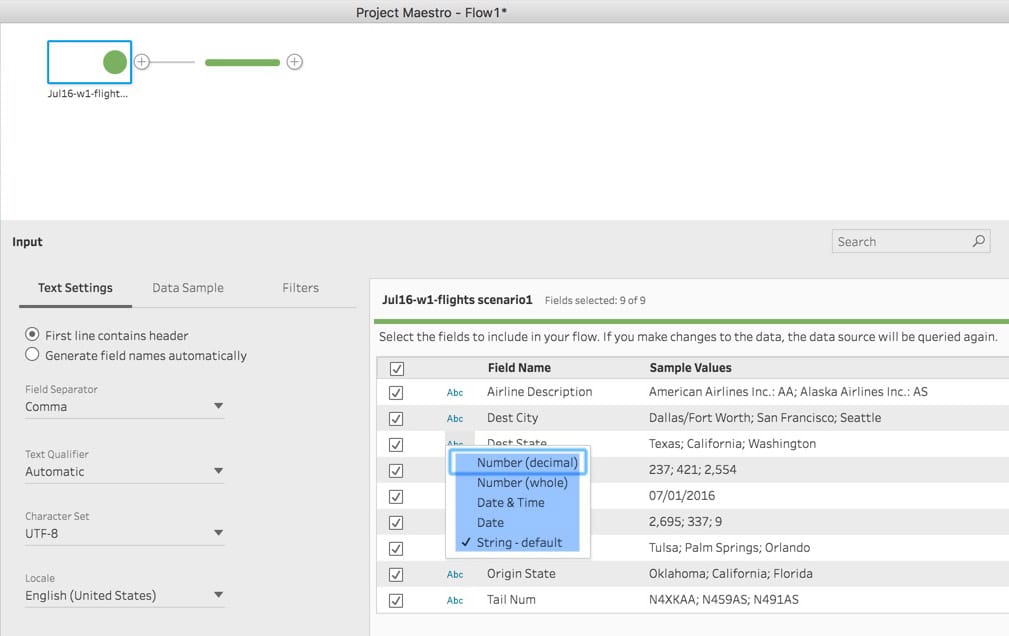
- See datatype of each field – For Text Files only, you can right click on the data type to modify it
- Exclude fields – uncheck the box next to the name to exclude the field
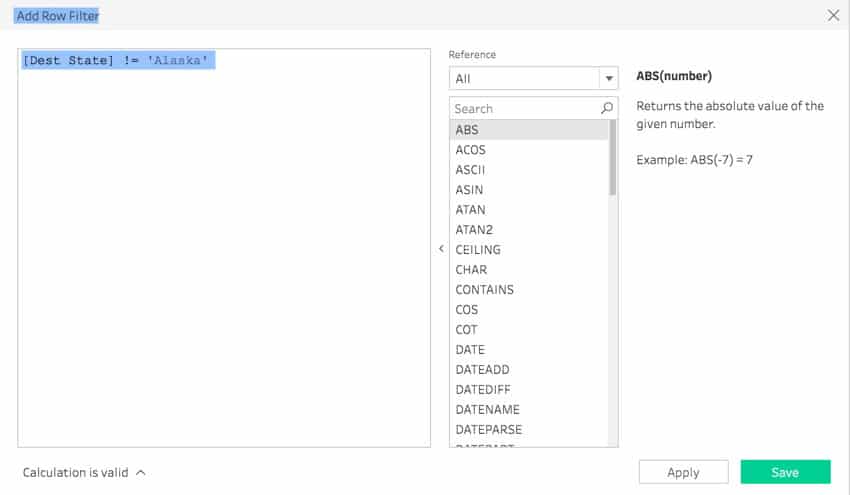
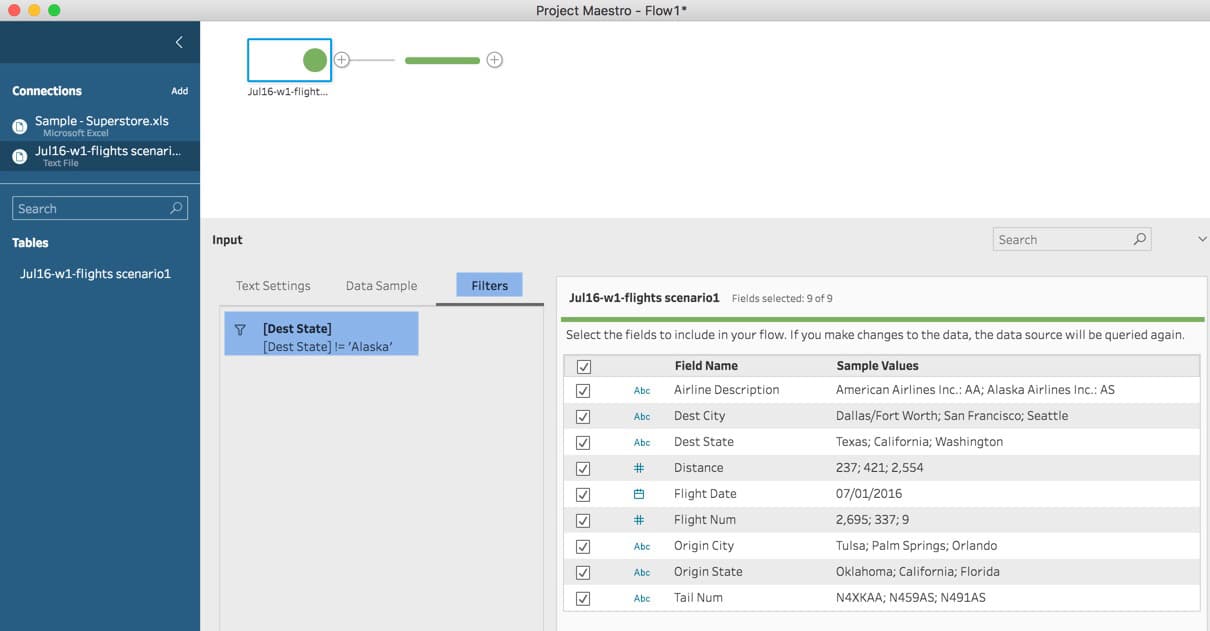
- Filter the data – right clicking on a field name allows you to create a formula to include/exclude records based on the formula (If you are already familiar with Tableau most of the functions you use for Calculated fields are available). Click on the Filters tab allows you to see all the filters you have created.
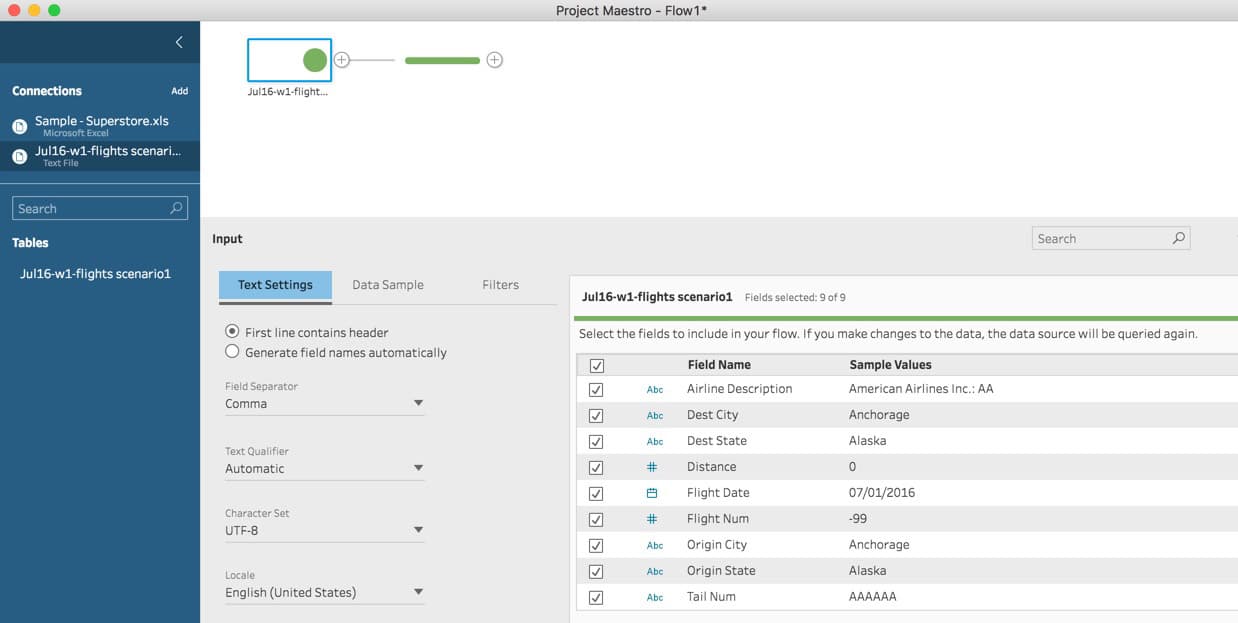
Depending on the data source, other options might be available. For Text Files, you can select:
- Whether the first line contains header or to Generate field names automatically;
- Field Separator;
- Text Qualifier;
- Character set;
- Locale For more info ETL Testing Certification
Example of a Text File connection:
Example of Filtering data in a Text File (exclude all records where the Dest State is Alaska):
Example of seeing filters that have been applied to a Text File by selecting the filter tab.
Example of how you can change a data type in a Text File:
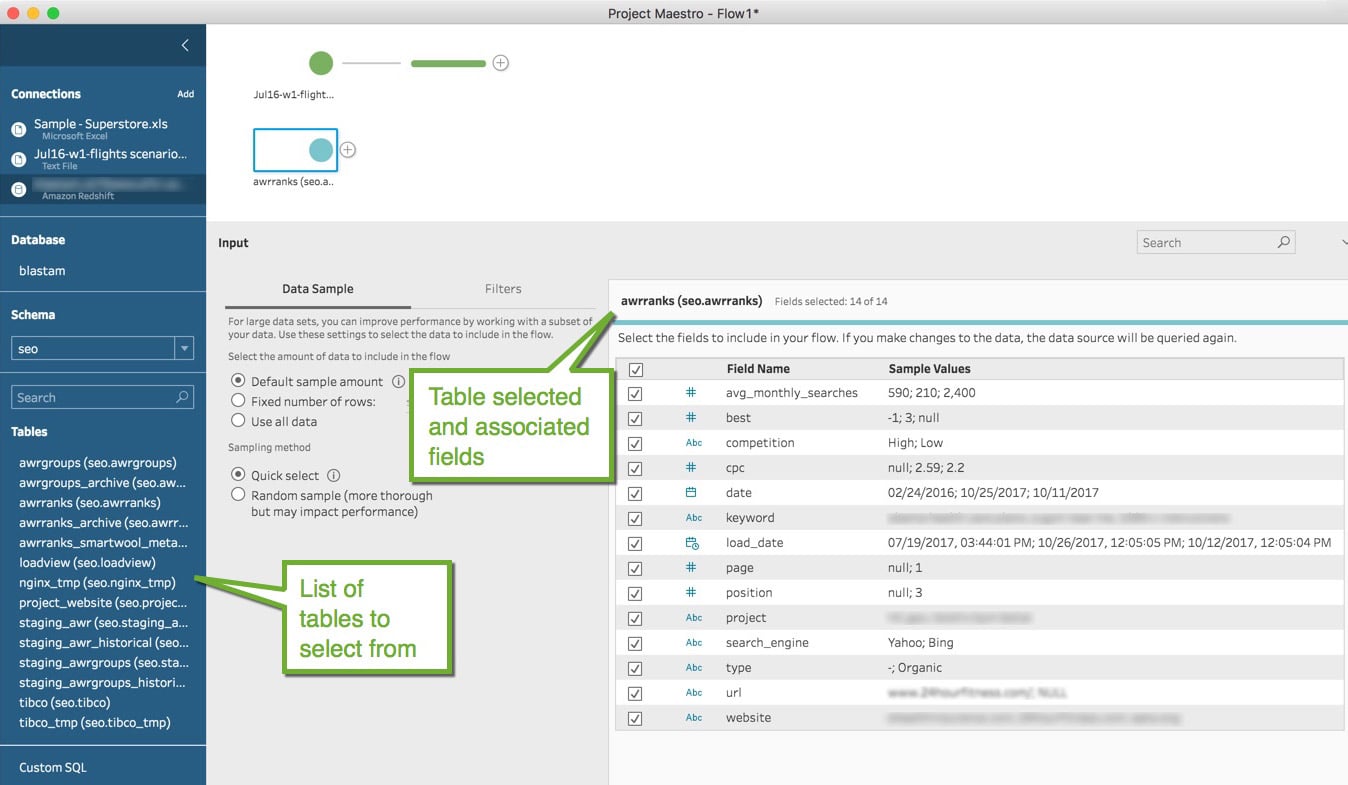
Example of connection to Redshift selecting a specific table (Note: you can select one table, and later use Tableau Prep to Join or Union other tables (or files), or you can select Custom SQL and create your own SQL statement which joins/unions various tables as needed to get the data you desire):
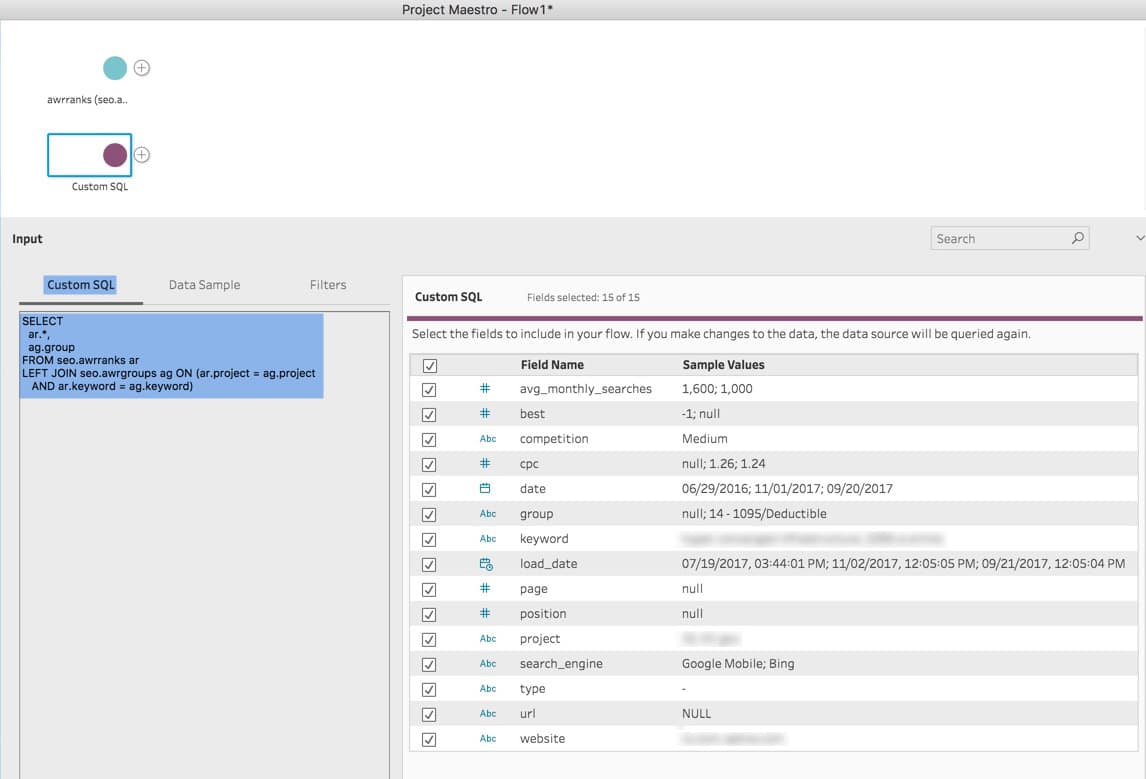
Example of connection to Redshift using Custom SQL:
Understand Your Data
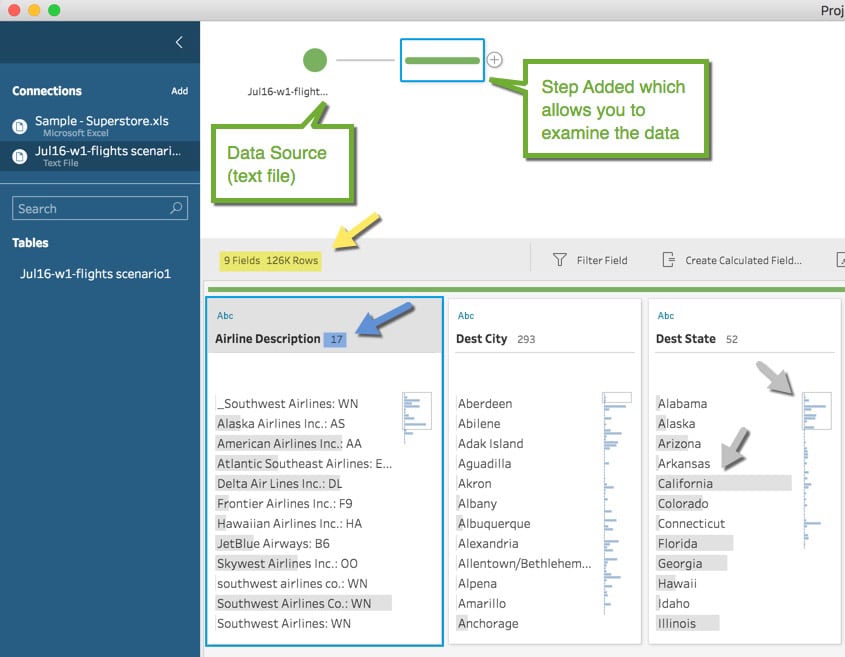
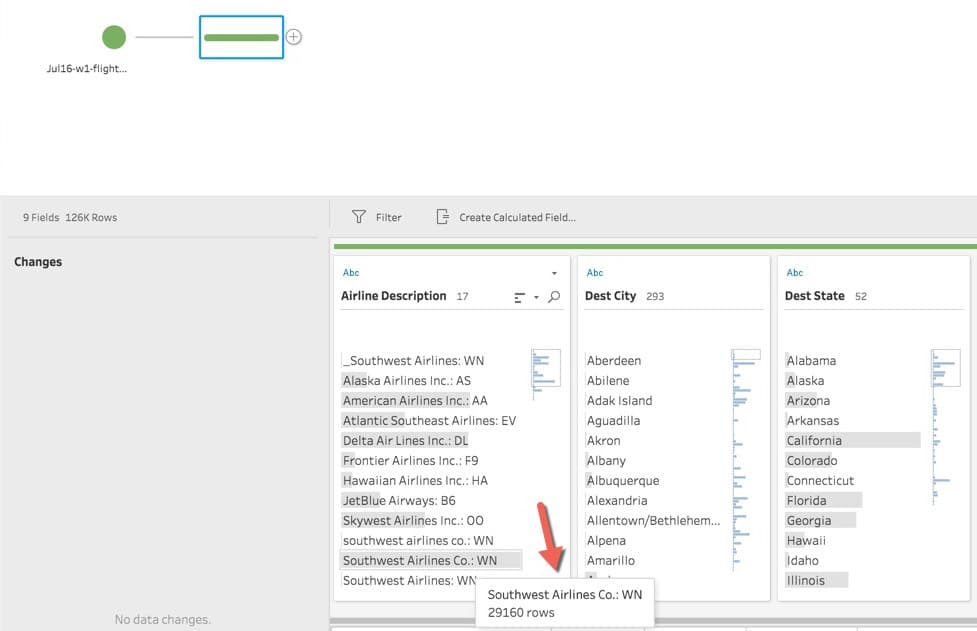
After you’ve connected to your data, Tableau Prep lets you see and analyze your data quickly, perform data profiling, visualize how the data is distributed, and allows you to quickly identify issues. In the example below, you can see:
- The data being examined has 9 columns and 126K rows (see yellow arrow)
- The column Airline Description has 17 distinct values (see blue arrow)
- For the field Dest State (see grey arrows), you can easily see that California is the most frequent value for Dest State (Notice the grey bar over California, which is much longer than any other State. In addition, just to the right of that, you see a miniature bar chart which shows all the States (not just the 12 of 52 displayed) and from that you can see California is the most frequent value for all Dest States in the data set)
Details about how many records have a specific value (hovering over Southwest Airlines Co..:WN in the Airline Description field shows there are 29,160 records with this value)
See record level details when you select a value from a field. In the example below Delta Air Lines Inc., from the Airline Description field was selected.
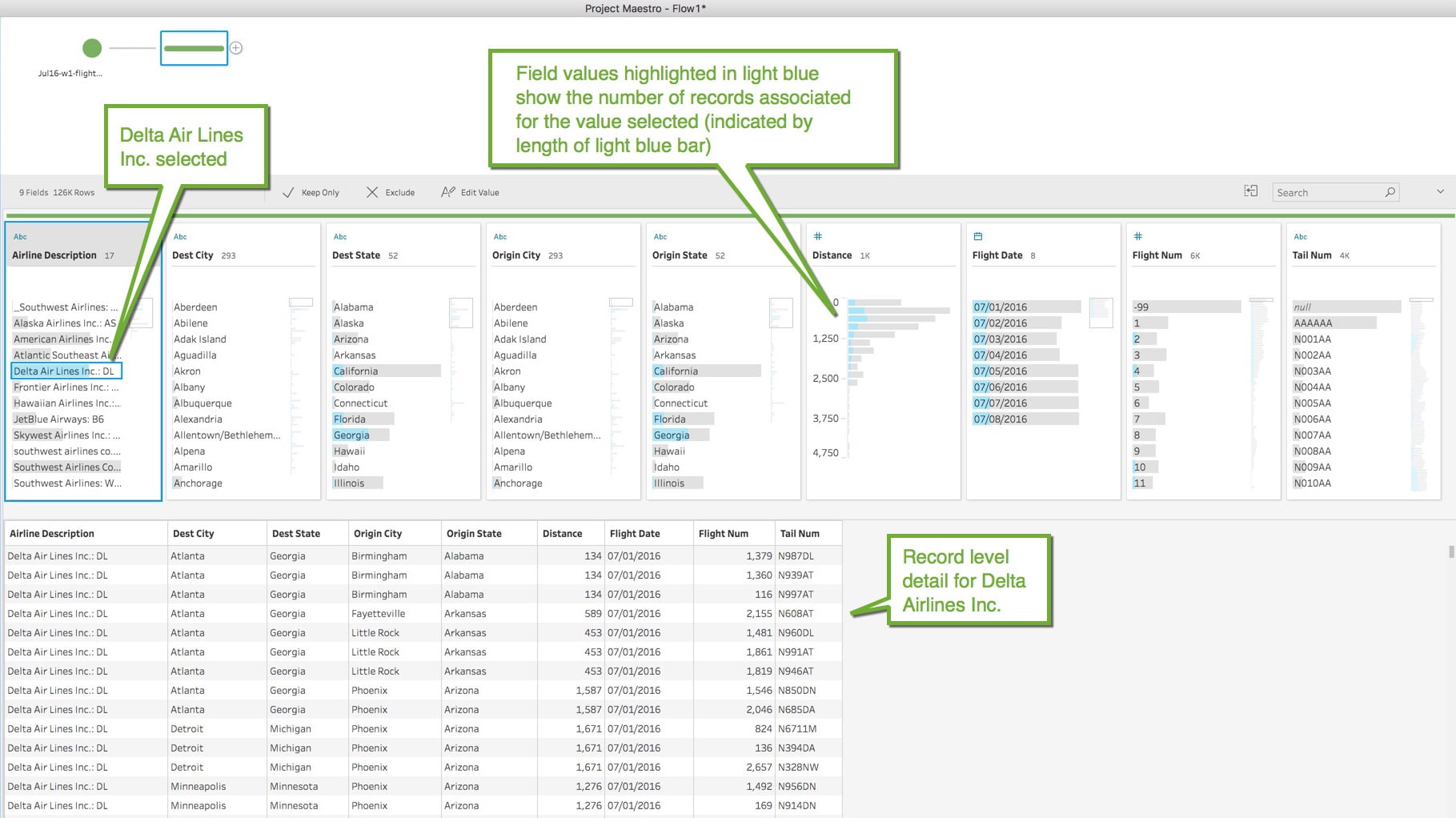
You can quickly see that Georgia, in the field Dest State, has the most records associated with the Delta Air Lines Inc. selection, as indicated by the length of the light blue bar compared to California, Florida, and the other States displayed in the Dest State field. In addition, the Distance for these records mainly fall between 0 and <1250 miles (again identified by the length of the light blue bars in the Distance field).
Identify Issues and Errors
As you analyze your data and how it is distributed, you may identify issues or errors. For example:
- Southwest Airlines has four different ways of being displayed (see yellow arrows):
- _Southwest Airlines:WN
- southwest airlines co.:WN
- Southwest Airlines Co.:WN
- Southwest Airlines:WN
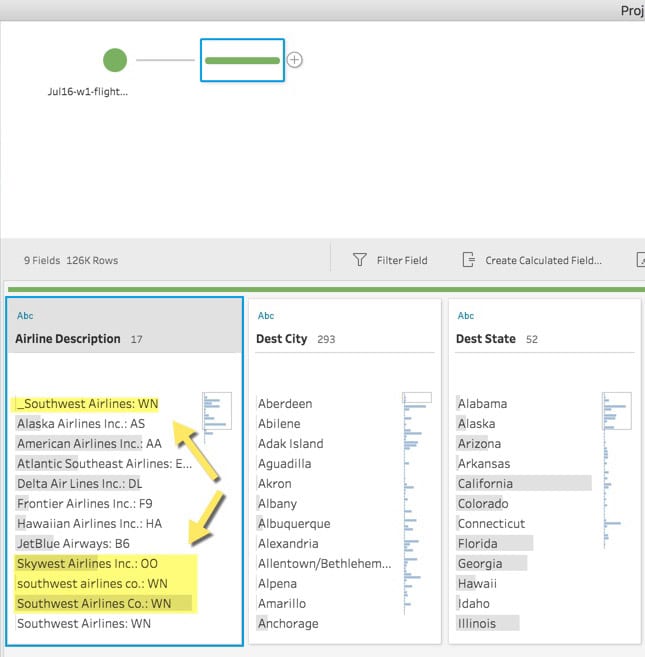
Using Tableau Prep’s data view allows you to quickly identify:
- Bad data that needs to be cleaned or removed
- Inconsistent data (data that doesn’t follow naming conventions, has typos, etc.)
- Outliers that may not be relevant to your analysis
Clean/Modify and Filter the Data
Once you find an issue with your data Tableau Prep can help you clean/modify or remove it.
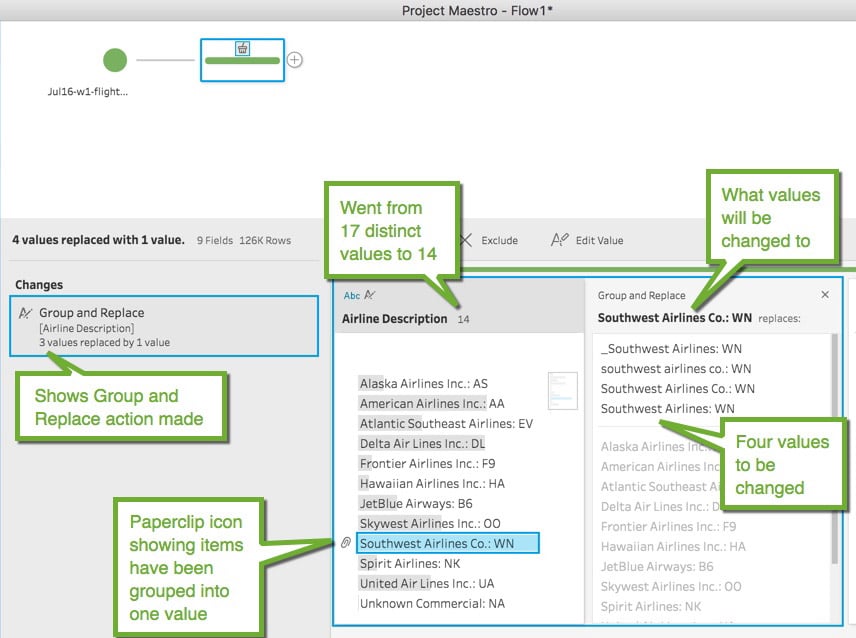
In the example above, we found there are four versions of Southwest Airlines, and Tableau Prep offers three different ways to fix this.
- Click on the value to be changed, and select “Edit Value” and modify it to what you desire and all records with that original value will be modified to the new value.
- Click on the correct value and then select Group and Replace – Manual Select from the field menu. A new window appears with all the distinct values in the field. Select the values that should be changed to the value selected initially. All related records for all the values selected will be modified to the initial value selected.
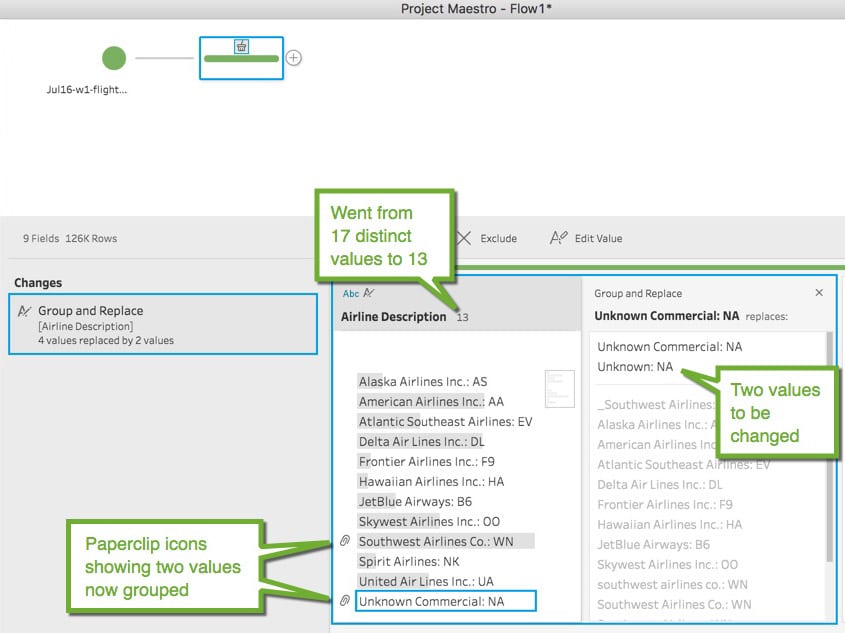
- Select Group and Replace – Pronunciation from the field menu. Tableau Prep will look through all the distinct values and using machine learning, it will find values that are similar in pronunciation and group them into one value. You then have the option of looking at the grouping(s) and revising as needed (you can remove a value from the group if it doesn’t belong). In the example below, using the Group and Replace – Pronunciation, the Southwest Airlines values have been grouped together and the Unknown values have been grouped together, all done automatically. Pretty slick!
Another example is finding data that should be removed because it is bad, irrelevant, or test data. Records can easily be removed using Tableau Prep’s filtering. In the example below, we discover there are 192 rows that have a Flight Num of -99, which is an invalid Flight Number. Looking at the detail records we see they are all exactly the same (same Airline Description, Dest City, Dest State, Origin City, Origin State, Tail Num and all have a Distance of 0 miles). We don’t want to include this in our data, so we apply a filter by selecting Filter Values from the field menu. It brings up a window allowing you to create a formula to include/exclude records based on the formula (If you are already familiar with Tableau most of the functions you use for Calculated fields are available).
To get in-depth knowledge, enroll for a live free demo on ETL Testing Online Training
 Mulesoft Online Learning