ServiceNow Connector – Mule 4

Anypoint Connector for ServiceNow (ServiceNow Connector) provides connections between Mule runtime engine (Mule) and ServiceNow apps. Use the ServiceNow operations with the custom ServiceNow tables, along with any operations available through the installed plugins.

Demo: How to Use the ServiceNow Connector with Anypoint Studio ...

Prerequisites

To use this connector, you must be familiar with:

  • Anypoint Connectors
  • Mule runtime engine (Mule)
  • Elements in a Mule flow and global elements
  • How to create a Mule app using Design Center or Anypoint Studio

Before creating an app, you must have access to the ServiceNow target resource and Anypoint Platform.

Audience

  • Starting userTo create your Mule app,.
  • Power userRead the XML and Maven Support and Examples topics. The Examples topic provides one or more use cases for using the connector.

Common Use Cases For the Connector

ServiceNow Connector enables organizations to fully integrate business processes across HR, legal, procurement, operations, marketing, and facilities departments. Creating connectivity within and outside the enterprise is quick and simple with connectivity to over 120 Anypoint connectors.

Use ServiceNow Connector to create instant API connectivity with the ServiceNow API, and quickly and easily interface with ServiceNow from within Anypoint Platform.

Example use cases includes getting a ServiceNow Training incident record.

Connection Types

The following authentication types are supported:

  • Basic
  • OAuth 2.0 Authorization Code

Limitations

  • OAuth 2.0 Authorization Code authentication works only with the following versions of Mule:
    • 4.1.5
    • 4.2.1 and later
  • Metadata does not work with OAuth 2.0 Authorization Code authentication.

Use Exchange Templates and Examples

Anypoint Exchange provides templates you can use as a starting point for your app, as well as examples that illustrate a complete solution.

Next Step

After you complete the prerequisites and experiment with templates and examples, you are ready to create an app with Anypoint Studio.

Introduction to Anypoint Connectors

Anypoint Connectors are reusable extensions to Mule runtime engine (Mule) that enable you to integrate a Mule app with third-party APIs, databases, and standard integration protocols. Connectors abstract the technical details involved with connecting to a target system. All connectivity in Mule 4 is provided through connectors.

Using connectors in a Mule app provides the following advantages:

  • Reduces code complexity, because you can connect a Mule app to a target system without knowing all of the details required to program to the target system
  • Simplifies authenticating against the target system
  • Proactively infers metadata for the target system, which makes it easier to identify and transform data with DataWeave
  • Makes code maintenance easier because:
    • Not all changes in the target system require changes to the app.
    • The connector configuration can be updated without requiring updates to other parts of the app.

Enable Connectivity with Connectors

Use connectors to connect a Mule app to specific software applications, databases, and protocols. To see a list of the MuleSoft-built connectors in Mule 4.

Connect to Software Applications

You can use connectors to connect a Mule app to specific software applications and to perform actions on the connected application.

For example, you can use Anypoint Connector for SAP (SAP Connector) to automate sales order processing between SAP ERP and your customer relationship management (CRM) software.

Likewise, you can use Anypoint Connector for Salesforce (Salesforce Connector) to integrate Salesforce with other business applications, such as ERP, analytics, and data warehouse systems. Learn more from Servicenow Certification

Connect to Databases

You can use connectors to connect a Mule app to one or more databases and to perform actions on the connected database.

For example, you can use Anypoint Connector for Databases (Database Connector) to connect a Mule app to any relational database engine. Then you can perform SQL queries on that database.

Likewise, you can use Anypoint Connector for Hadoop Distributed File System (HDFS Connector) to connect a Mule app to a Hadoop Distributed File System (HDFS). Then you can integrate databases such as MongoDB with Hadoop file systems to read, write, receive files, and send files on the HDFS server.

Connect to Protocols

You can use connectors to send and receive data over protocols and, for some protocol connectors, to perform protocol operations.

For example, you can use Anypoint Connector for LDAP (LDAP Connector) to connect to an LDAP server and access Active Directory. Then you can add user accounts, delete user accounts, or retrieve user attributes, such as the user’s email or phone number.

Likewise, you can use Anypoint Connector for WebSockets (WebSockets Connector) to establish a WebSocket for bidirectional and full-duplex communication between a server and client, and to implement server push notifications.

How Connectors Work

Connectors can perform one or more functions in an app, depending on where you place them and the capabilities of the specific connector. A connector can act as:

  • An inbound endpoint that starts the app flowConnectors that have input sources can perform this function.
  • A message processor that performs operations in the middle of a flow
  • An outbound endpoint that receives the final payload data from the flow

Input Sources

Some connectors have input sources, or “triggers”. These components enable a connector to start a Mule flow by receiving information from the connector’s resource. For example, when a Salesforce user updates a sales opportunity, a flow that starts with a Salesforce Connector component can receive the information and direct it to a database connector for processing.

To see if a connector can act as an input source, see the Reference Guide for the connector.

App developers can also use an HTTP Listener or Scheduler as an input source for a flow:

  • HTTP Listener is a connector that listens to HTTP requests.You can configure an HTTP Listener to start a flow when it receives specified requests.
  • Scheduler is a core component that starts a flow when a time-based condition is met.You can configure a Scheduler to start a flow at regular intervals, or you can specify a more flexible cron expression to start the flow.

Operations

Most connectors have operations that execute API calls or other actions on their associated system, database, or protocol. For example, you can use Anypoint Connector for Workday (Workday Connector) to create a position request in Workday or add a fund to the financial management service. Likewise, you can use Anypoint Connector for VMs (VM Connector) to consume messages from and publish messages to an asynchronous queue.

To see a list of operations for a connector, see the Reference Guide for that connector.

Anypoint Exchange provides access to all publicly available connector assets including connectors, templates, and examples.

Connectors in Exchange

You can use Exchange as a starting point for discovering all or a subset of MuleSoft-built connectors.

To get in-depth knowledge, enroll for a live free demo on Servicenow Online Training

How To Create A ServiceNow Personal Developer Instance

What is ServiceNow personal developer’s instance?

The ServiceNow Developer Program provides developers with resources to learn, build and deploy applications on the ServiceNow platform.

Once registered for the ServiceNow Developer Program, a personal developer instance can be requested on this site either from the Developer Dashboard or from the Manage main menu.

ServiceNow offers free, full-featured personal developer instances (PDI) to registered users who want to develop applications on the ServiceNow platform or improve their skills with ServiceNow. Members of the ServiceNow Developer Program can use their PDI as long as there is activity on the instance.

If there is no activity within 10 days, the instance will be returned to the pool of available instances. If this happens to you, request a new instance and a new developer instance will be granted to you if available. For more info Servicenow Training

Step 1. Go to the ServiceNow website, click sign up

Figure 1

1.1 Complete the following information

Figure 2

1.2 On completion a confirmation message will be presented (similar to as shown below)

Figure 3

Step 2. You should get an email as shown below (check your inbox / Spam folder) – click on Verify Email

Figure 4

1.5 After your email is verified your account will be activated on ServiceNow site

Figure 5

Step 3. Please use activated email address and password to sign in to the 

ServiceNow developer site

Figure 6

Step 4. Log in to the ServiceNow developer site

4.1 Open the Manage menu and click the Instance menu item

Figure 7

4.2 Click the Request Instance button

(if prompted fill in the how you will use your ServiceNow)

Figure 8

4.3 The below option will be presented to choose a version if you are not clear choose ‘Madrid’ as suggested.

Figure 9

Step 5. Congratulations, you successfully created a ServiceNow instance

When the instance is assigned, the screen updates to display the instance URL and the admin credentials. If you navigate away from the Manage Instance page (similar to below screenshot), you will receive your instance name and admin password by email. Copy the admin password to the clipboard.

Figure 10

5.1 Click the instance link to open the instance in a new browser tab

Log in to the instance:

       Useradmin

       Password<password you copied to the clipboard>

After logging in for the first time, you are prompted to change the admin password. Passwords must be at least 8 characters long and contain a digit, an uppercase letter, and a lowercase letter.

Figure 11

Step 6. You are all set your developer instance is created

Figure 12

To get in-depth knowledge, enroll for a live free demo on Servicenow Online Training

Mulesoft Interview Questions And Answers

What is Mulesoft? For what Mulesoft is used for?

Answer:
MuleSoft is the most widely used integration platform. Here we will find 2 types Mule ESB and Cloud Hub for connecting enterprise and SAAS applications in the on-premises and cloud. Mulesoft allows developers to connect applications together quickly and easily and it helps in exchanging the data.

Mulesoft ESB Interview Questions & Answers

2. Explain the types of variables in mule?

Answer:
There are 3 types of variables available in a mule.

  • Flow Variable
  • Session Variable
  • Record Variable

3. What is Mule ESB?

Answer:
Mule ESB is a Java-based ESB (enterprise service bus) and it is the integration platform all the developers can connect to their respective application directly with ESB. Mule ESB uses service oriented architecture. The main use of Mule ESB is it enables easy integration of existing systems. It can integrate with different technologies that the applications use- Including JMS, Web Services, HTTP, etc.

Let us move to the next Mulesoft Interview Questions.

4. What is ESB?

Answer:
ESB stands for Enterprise Storage bus. It’s software architecture for middleware and it provides fundamental services for more complex architectures. This is the common Mulesoft Interview Questions which is frequently asked in an interview.

Example: In ESB incorporates with the features required to implement an SOA(service-oriented architecture ). For more info Mulesoft Training

5. What is the MuleSoft Anypoint platform and where it will be used?

Answer:
MuleSoft Anypoint Platform of integration products is designed to tie both software as a service (SaaS) and on-premises software.

Part 2 – Mulesoft Interview Questions (Advanced)

Let us now have a look at the advanced Mulesoft Interview Questions.

6. What are the main features of Mule ESB? What are the different ESBs in the market?

Answer:

1)The main Features of Mule ESB are::

  • It is very simple and easy to use-Drag and drops Graphical design
  • SLA monitoring and API management
  • High scalability
  • We can deploy in a One-click cloud or on-premise deployments

2)Different ESB’s in Market are::

  • Talend
  • Mule ESB
  • JBoss Fuse ESB

7. How will we identify ESB is needed in a project?

Answer:
Implementation of ESB is not suitable for all the projects. We should analyze is really ESB is required here or not. You need to analyze by taking below points into consideration:

  • In the project, require 3 or more applications and services to be integrated and there must be a need to communicate between the applications.
  • If there is plain of interacting with more applications and Services in the future then we can go with Mule ESB because it is highly scalable.
  • We need to keep cost also in mind before going to ESB implementation

Let us move to the next Mulesoft Interview Questions

8. Explain the difference between Callout and Service Invoke?

Answer:
Callout: We can call the service using callout or with service invoke. Use the Callout if we need to mediate a message (without calling an intermediate service) and then call a service provider.

  • The Callout provides the simplest model for this configuration.
    Service Invoke: You need to interact with multiple services, and produce an output that combines service responses. The Service Invoke primitive does not switch from request flow to response flow.
  • Use the Service invoke if we need to call an intermediate service.
    Example: We can use an intermediate service to adjust a message or to validate a message externally. The mediation flow contains Service Invoke mediation primitive, and a Callout node that is connected to the service provider there will be no intermediate service.

9. What is the full form of SDO and SMO?

Answer:

  • SDO: Service Data Object and it represent the Object.
  • SMO: Service Message object and it is used to represent messages

10. Explain about Fan-in and Fan-out?

Answer:
Fan-In:  Fan-In is always in the flow with Fan-Out and helps in taking a decision to continue flow execution. The Fan In may only be used in combination with Fan Out.

Fan-out: We can use the Fan Out-primitive to fire the output terminal once with the input message or to fire the output terminal multiple times. Fan-out can be used as a combination of Fan Out and Fan In.

To get in-depth knowledge, enroll for a live free demo on Mulesoft Online Training

Architecture Evolution With Mulesoft

Monolithic Architecture (Single Unit)

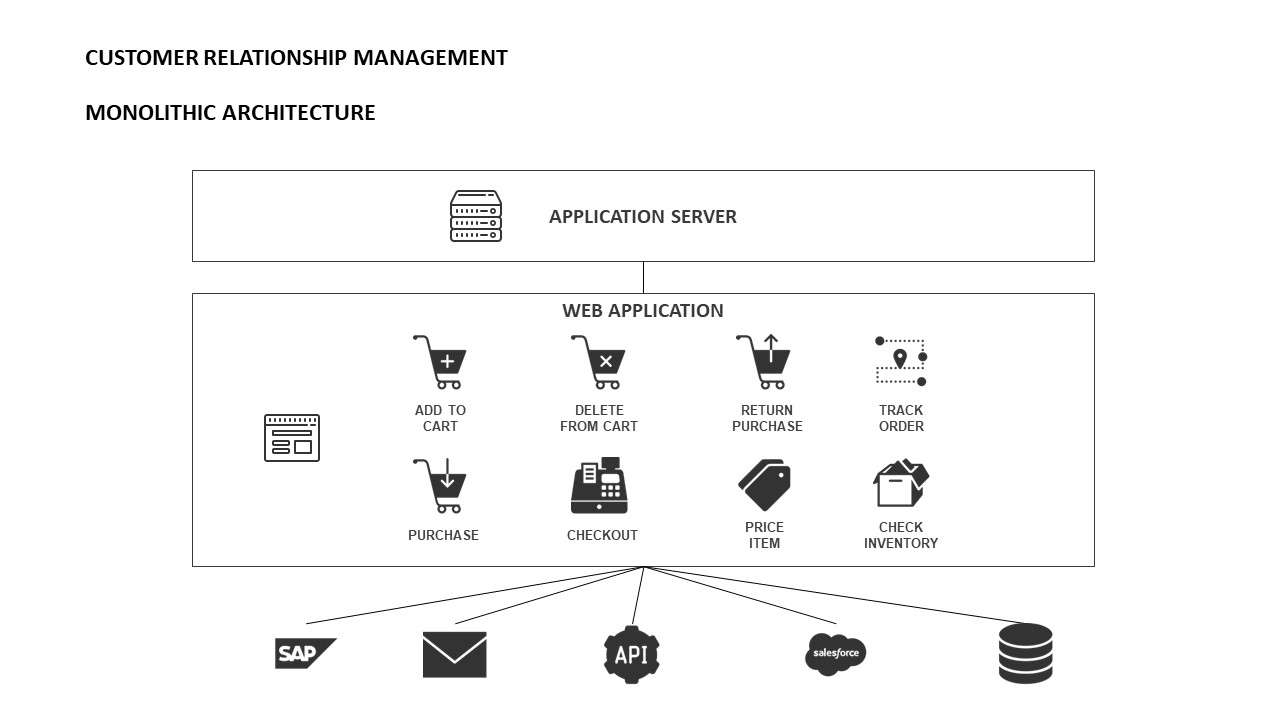
Monolithic architecture could be defined as the first architecture. Simple and tightly-coupled applications, they are executed in a single application layer and group all functionalities in the same one.

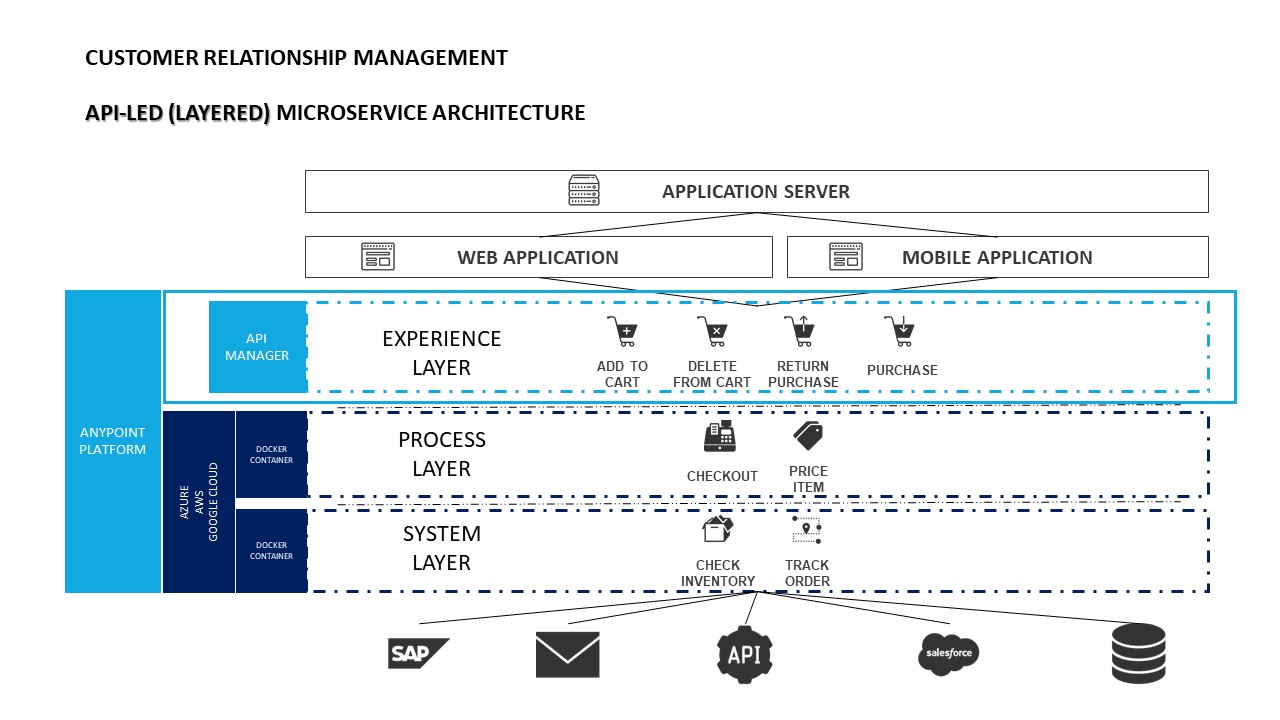
If, for example, we want to access another service or system through an API, we must develop business logic as well as error management and so on in the application itself. The following diagram shows a simple example of monolithic architecture on Customer Relationship Management.
Image title

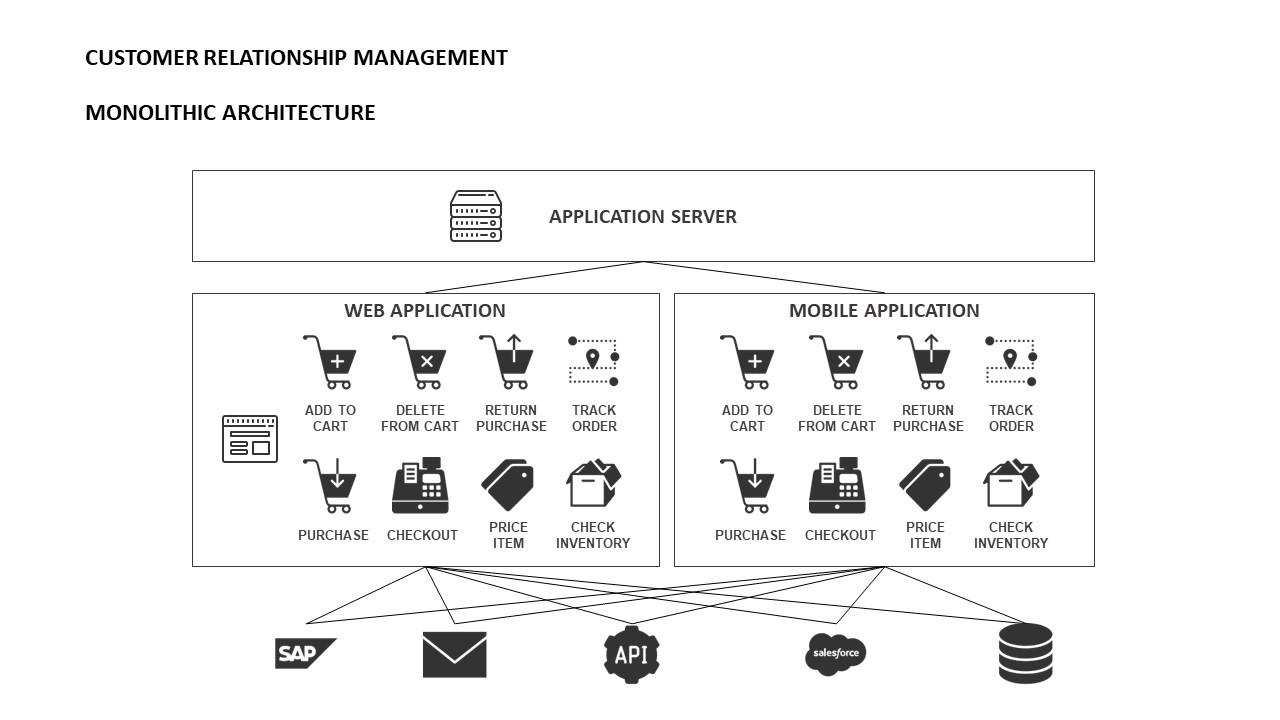
For small architectures, they work well, but when the architecture grows, the application is more complex to manage and refactor. In addition, it makes continuous integration more complicated to carry out, making the DevOps process almost impossible to accomplish.
Image title

The communication between resources and/or applications is direct without any other middleware/ESB intervening. It even increases the level of difficulty when it comes to implementing communication with a web service in some languages such as Java, where the connection with a SOAP service is complex. For more Mulesoft training

SOA Architecture (Coarse-Grained)

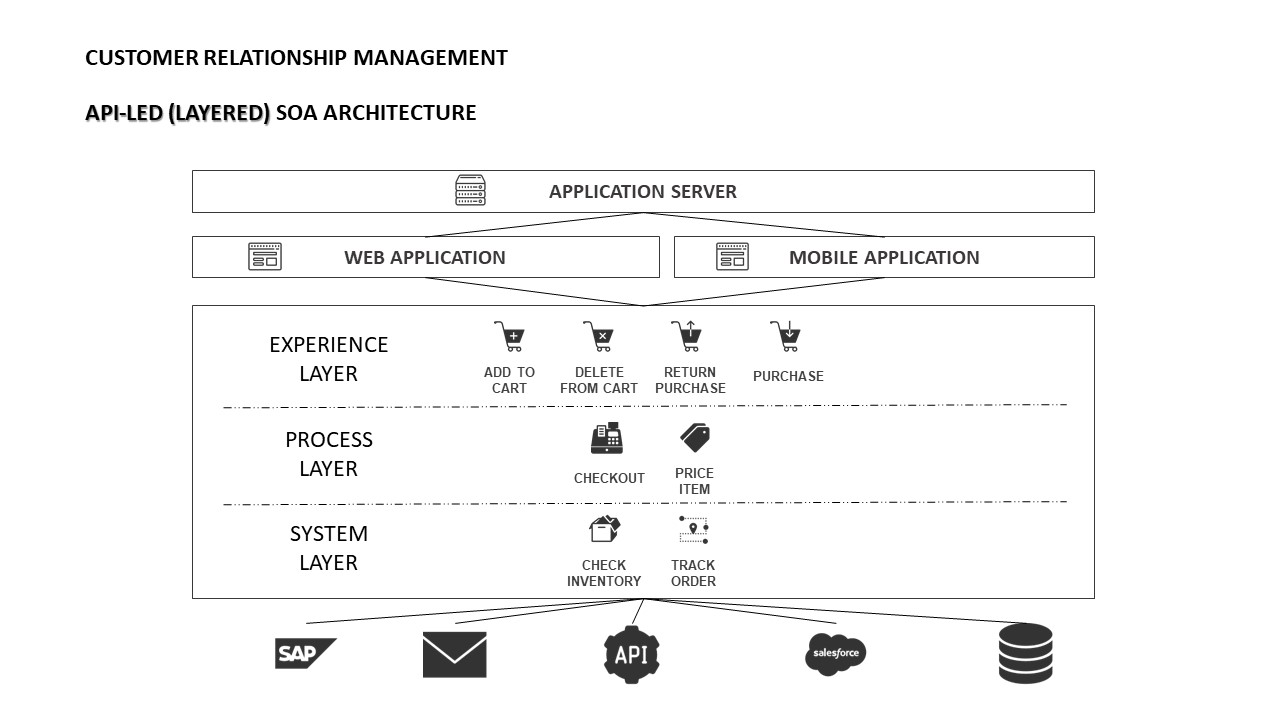
SOA (Service-Oriented) architecture already allows for greater decoupling and therefore evolution to a more diversified architecture, or as they call it, coarse-grained.

This is the original architecture of Mulesoft, the ESB that allows to centralize all the business logic and allows the connection between services and applications regardless of their technology or language in a fast and simple way.

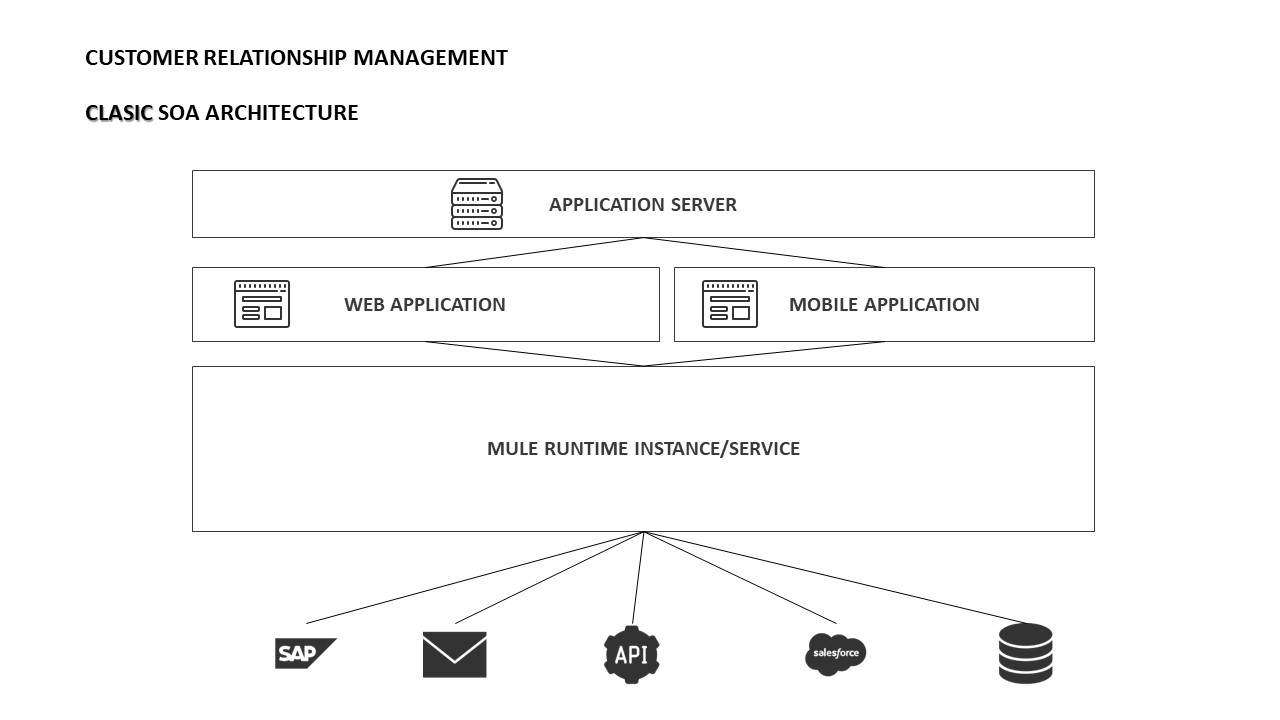
Mulesoft offers Mule Runtime, similar to Apache Tomcat, which works as a servlet container, as defined in the following diagram.
Image title

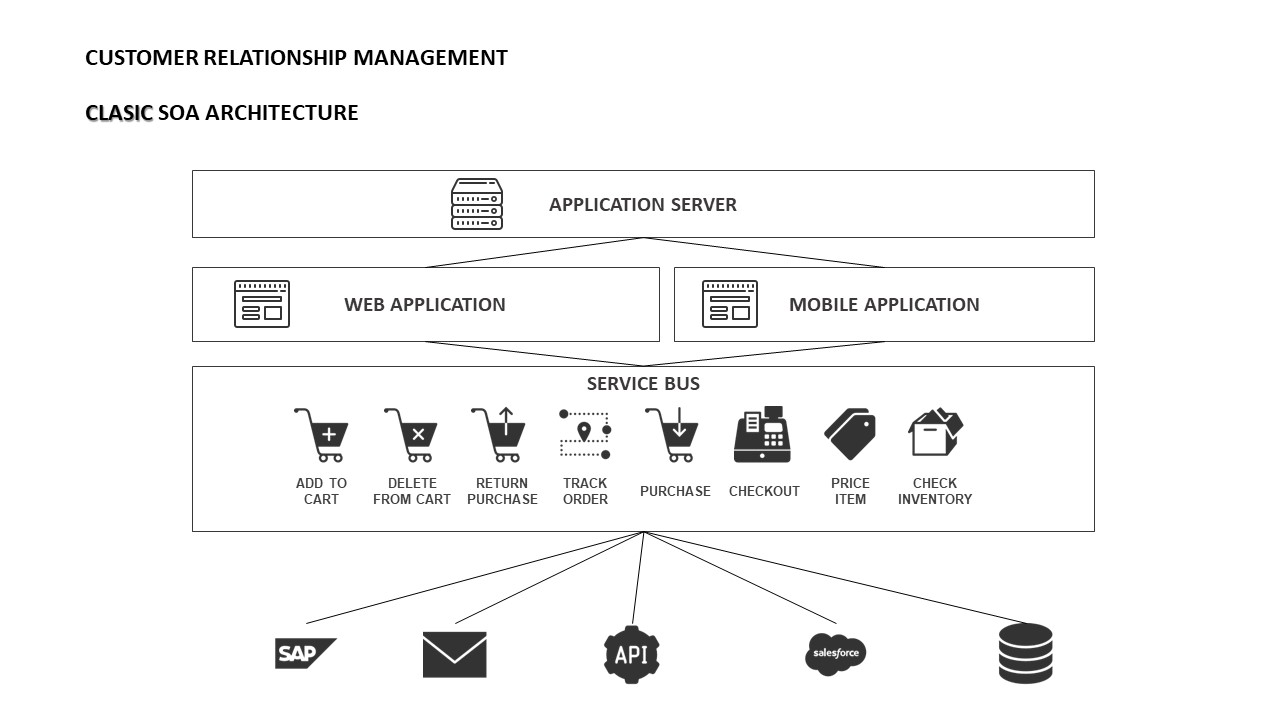
In this way, we eliminate all the work and most of the business logic to the application with monolithic architecture. The ESB will be in charge of transforming the data, routing, accessing the necessary services, managing errors, etc. The source application will simply generate a message (if necessary) and send it to the ESB via HTTP request.
Image title

However, one problem persists, and that is that all the integrations deployed work on the same runtime by leading it to the coupling and to an architecture that continues to have monolithic nature. For example, when you apply a configuration in the runtime, it will be applied to all your deployed applications. Get from Mule training

Microservice Architecture (Fine-Grained)

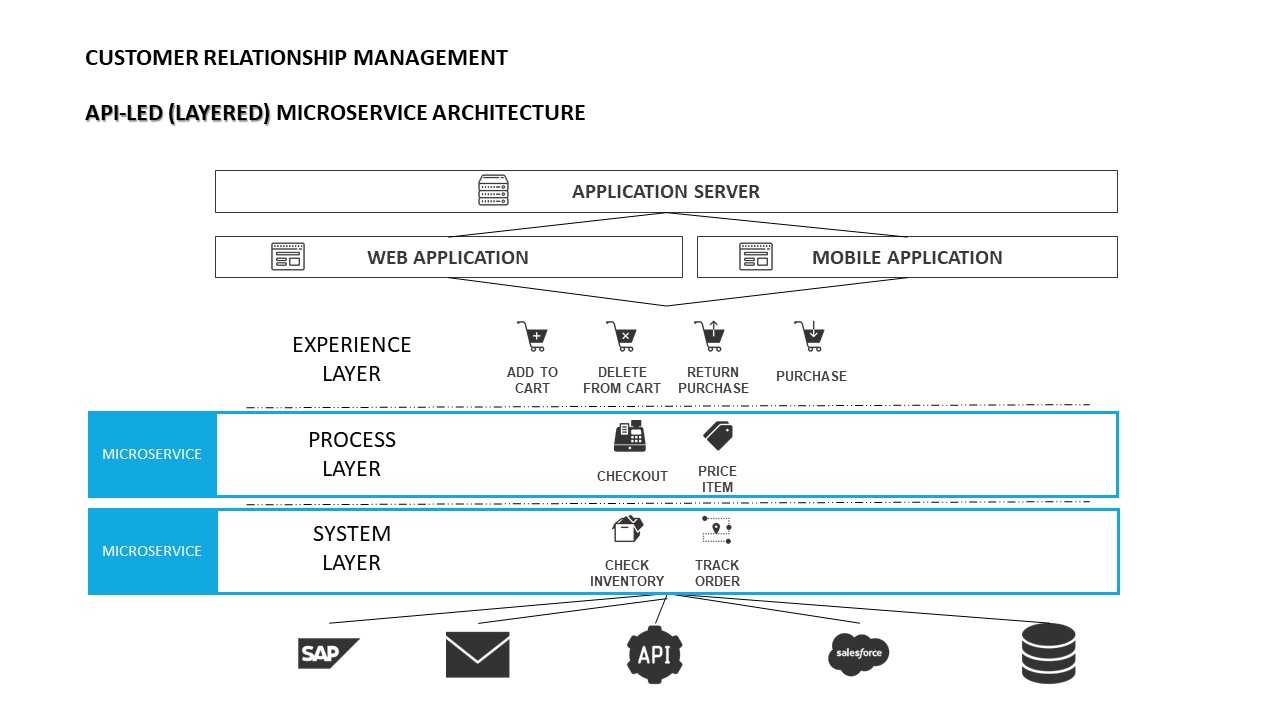
Finally, the fine-grained one. This architecture imitates SOA but with smaller and independent services. Microservices bring a lot of complexity to the architectural level as there are many small actors involved, but the advantage is that they are all isolated and independent.

The limits must be very clear, reducing it too much can end up with a very complex and excessive architecture. The use of microservices requires a great change of mentality, things must be simple, well documented, simple to execute. This is why a development cycle should also be proposed/used to execute, implement and evolve quickly.

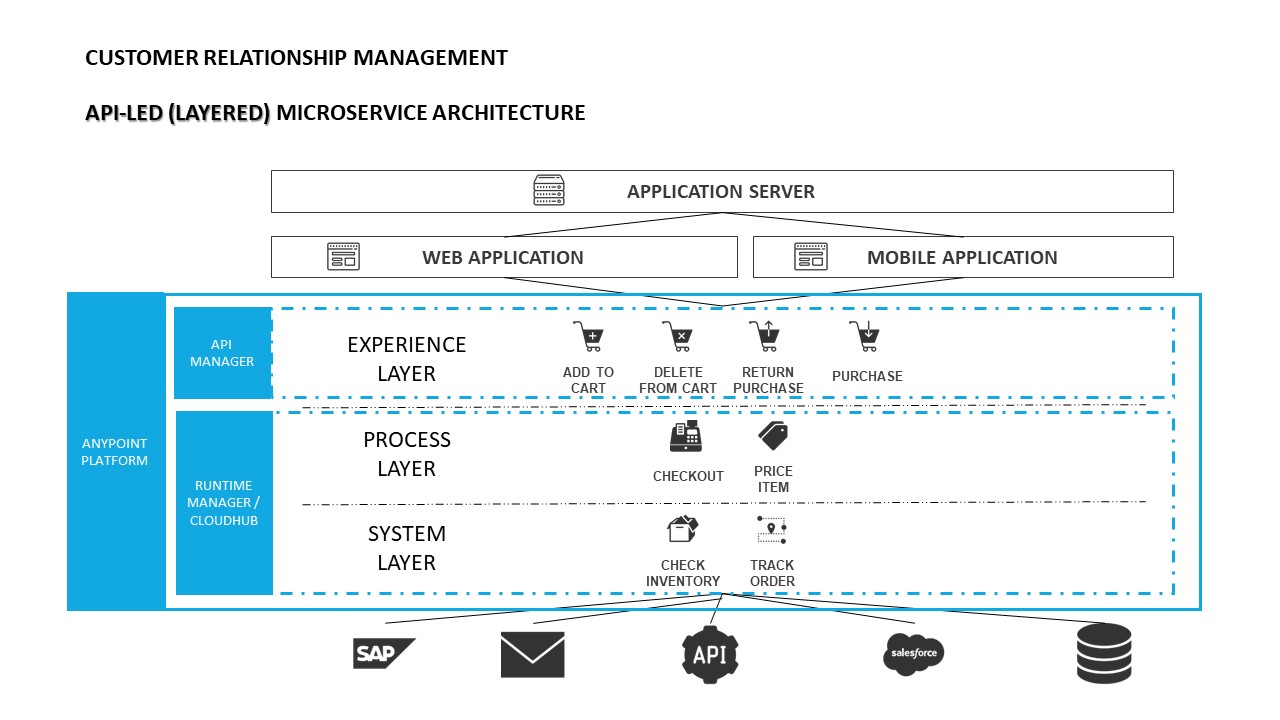
Mulesoft has also evolved and is no longer just a middleware with SOA architecture, now also focuses on the architecture of microservices with its integration as a service (SaaS) platform, Anypoint Platform. In this way, through its Cloudhub storage platform (integrated with the Anypoint Platform), you can deploy applications so that they are automatically created in separate instances without realizing it.
Image title

In addition, Mulesoft’s methodical way of connecting data and applications through reusable and useful APIs, API-led connectivity, which helps to decouple between the implementation and the API. API-led connectivity is divided into three layers, Experience Layer, Process Layer, and System Layer. The first layer is the one that interacts with the client and has no implementation, only an exposed API that can be managed and secured.
Image title

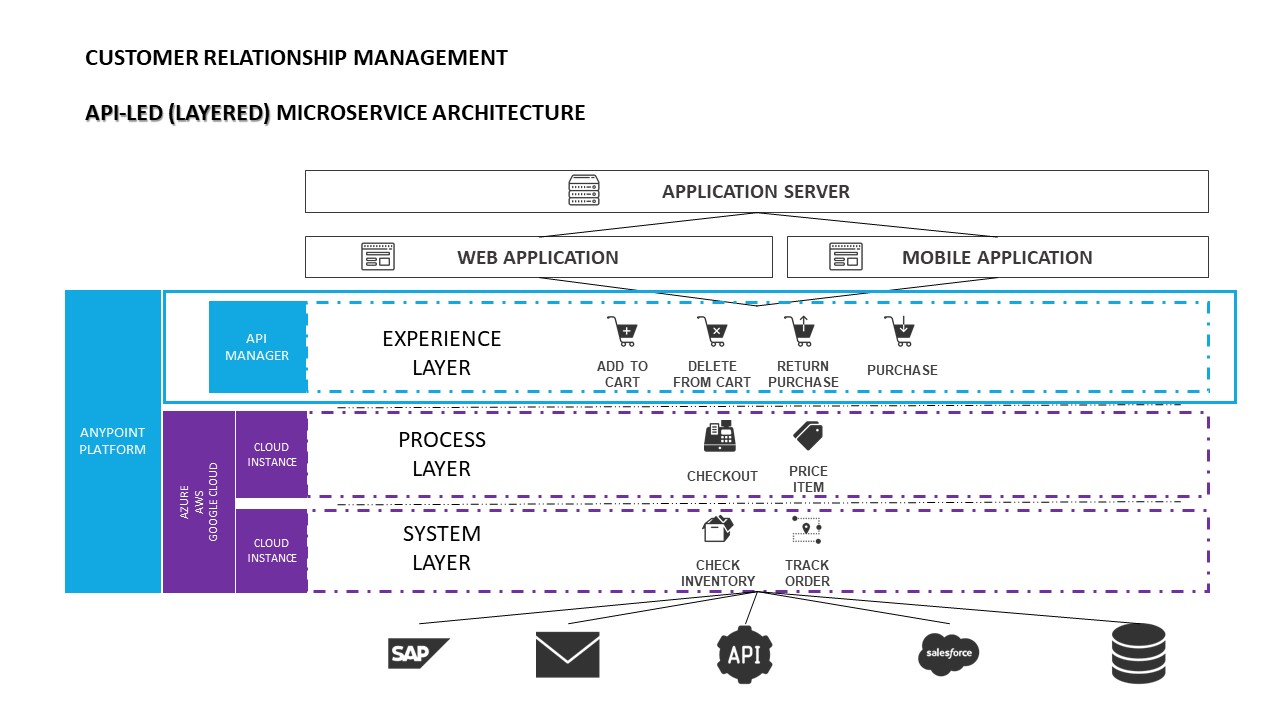
The remaining layers contain the implementation, the process layer interacts between the API exposed and the systems layer that connects to the necessary services (database, SAP, Salesforce, mail, e-commerce, etc.). learn from mulesoft Course

Image title

But there’s still one more evolution. Thanks to Anypoint Runtime Fabric and Runtime Manager (integrated with Anypoint Platform), these applications can be deployed on Runtimes in instances on infrastructures managed by the client in AWS, Google Cloud, Azure, virtual machines, or bare metal.

Image title

Also for containers, although it requires Docker’s knowledge.
Image title

Summary 

The problem with the supposed imperative to adopt microservices is that there are many people who feel that it is a prescriptive architecture; it must be done one certain way — like Netflix, for example — or it simply can’t be done. But adopting microservices this way is not feasible for many organizations and can lead to failure.

To get in-depth knowledge, enroll for a live free demo on Mulesoft Online Training

Using R and Tableau

Together, R and Tableau could be extremely useful in today’s data science arena as together it can unravel any organization’s end to end information discovery needs.
R has become one of the foremost widely used statistical software packages among statisticians and researchers since it provides more than 10000 specialized packages. Tableau takes only seconds or minutes to visualize using a simple to use drag-and-drop interface.
Here in this blog, we will go through the steps of integrating R and Tableau.
Prerequisite to follow below steps: R and tableau is already installed

Step 1:

Inside R software, install Rserve package with below command.
install.package(Rserve)

Once the installation for the package is complete, we run the package with the command below. For more info Tableau Training
library(Rserve);Rserve()

This will start a Server in the background irrespective of whether R console is open.

Step2:

Now we move to Tableau to perform connection to the server we just started.
While startup page, go to Help→ Settings and Performance → Manage External Service connection.

This will prompt a small window where server name is localhost and port 6311 is to be set.
Press test connection to get the successful message. And then press OK.

This proves the connection to Rserver is complete.
We will now see a small example if it works for us.
Taking a small sample data inside Tableau.
Sampledata:

Importing Data in Tableau

You may see sample data form a tabular structure.
Now change the tab from Database to Sheet. Learn more from Tableau Server Training

Now we see how the calculation happens with the help of Rserver.
Problem Statement: Calculate Total Expense done.
Solution:

Step3:

Go to Analysis Tab and select Create-Calculated-Field

Now Give a Name to Field.
As I have given TolalExpense and click Apply.

Now write a Script which will run in R.
For my case the Script is:
SCRIPT_INT( ” ToExp <- .arg1 ” , SUM([Jan]+[Feb]+[Mar]) )
Explanation: we have SCRIPT_INT as the script will return integer type.
Test between “ ”, is the script running in Rserver. And .agr1 will take function SUM as value to process data.

A message displays when we Apply. Our script is pushed to Rserver and checked if the calculation is valid or not.
Press OK to save the script and come back to Tableau to visualize our query.

Step4:

Drag and Drop the Fields to Visualize data. Also, we can see our solution has created a field which we can drag and compare with other fields.
Solution: Total Expense is 75000

To get in-depth knowledge, enroll for a live free demo on Tableau Online Training

How to Set up a ServiceNow Jira Integration: the Comprehensive 2020 Guide

As companies grow, the need to integrate data between different platforms becomes more inevitable. For instance if you’re working in ServiceNow and you have a partner or a client who uses Jira, then a ServiceNow Jira integration seems to be the best solution for seamless collaboration.

So in this guide, we will discuss the need to integrate ServiceNow Incidents with Jira Issues. (Although this process can also be applied to other entities, like Problems, Cases, Change Requests, etc.)

We will cover why admins set up the ServiceNow Jira integration in the first place. How to choose the right technology to configure the integration. And we will cover the step-by-step process on how to set it up.

Why Integrate ServiceNow with Jira

Thinking of IT Service Management, ServiceNow has become a mainstream choice for CIO’s & the head of IT departments to consider.

Started as an innovative niche cloud platform to manage ITSM processes based on ITIL best practice, ServiceNow has gained enormous traction in recent years. They currently have more than 20.000 customers world-wide & are growing rapidly.

On the other hand, when thinking of Agile Software development, Jira sprints in mind immediately.

As part of the Atlassian product offering, Jira manages issues & projects for Software teams. And it integrates nicely with other Software development tools of Atlassian. In short, for many Software teams, Jira is the natural choice for Issue/Project management. This is especially true when other Atlassian products are used for Software Development too. For more info Servicenow Training

With the above positioning of ServiceNow & Jira in the IT Service Management & Software development space in mind, the need for integration becomes obvious.

Here I’ve summed up two examples of possible scenarios:

  1. A company’s IT department uses ServiceNow to provide users a One-Stop-Shop portal for all IT services. This includes reporting issues on Software. In-house Software teams use Jira to manage Issues/Projects. They generally prefer the Atlassian suite because it is used for Coding/Collaboration.
    • Incidents reported by a user on ServiceNow need to be forwarded to Jira as an issue to be solved by the Software team
    • When the Software team encounters infrastructure issues, they need to be forwarded to ServiceNow as an Incident
  2. A company uses ServiceNow for ITSM and one or several Software packages are provided by an external software vendor. The software vendor tracks issues on the Software from all customers with Jira. Then the incident in ServiceNow needs to create an Issue on Jira and get status updates.

How to Choose the Right Technology for Setting up your Integration

When designing an integration between two ticketing tools, three aspects always need to be considered:

  • Autonomy: The ticketing tools at each end of the integration has the means to control what information is sent to the other side and how incoming information is interpreted. Changes in the ticketing tools shouldn’t break the integration. Rather they should be easily reflected in the integration.
  • Reliability: A reliable integration is one that always works for the user – even when the other side is not available for whatever reason (such as maintenance). Operational maintenance capability is important to ensure always-on integration.
  • Flexibility in the configuration: The integration is able to bridge the differences in the two systems. To be able to effectively attribute mapping is a first mandatory step. Having the flexibility to align the process differences between the teams/organizations – a second

For this guide, we’ll set up the integration using Exalate. Precisely because Exalate was built to fulfill the above requirements. And it meets the criteria for the described ServiceNow Jira integration scenarios.

In the chapters below I will show you how Exalate addresses the above aspects in more detail. But first, let’s go through the step-by-step process on how to set up the integration!

How to Set up a ServiceNow Jira Integration (a Step-by-Step Process)

Step 1: Install the Exalate app on your ServiceNow Instance

To install Exalate on your ServiceNow instance, you’ll have to use an “update set”.

You can find the step-by-step instructions of the Exalate agent installation for ServiceNow on the following Exalate documentation page:

Step 2: Install the Exalate app on your Jira Instance

In order for Exalate to work, it needs to be installed on both sides of the integration.

This means you’ll also have to install Exalate on Jira. This will be the straight forward process as installing a Jira app.

You can find the step-by-step instructions of installing the Exalate agent on your Jira instance here:

Step 3: Have a Quick Look at the Exalate Console

The Exalate console provides a user interface for system administrators to configure & maintain the Integration.

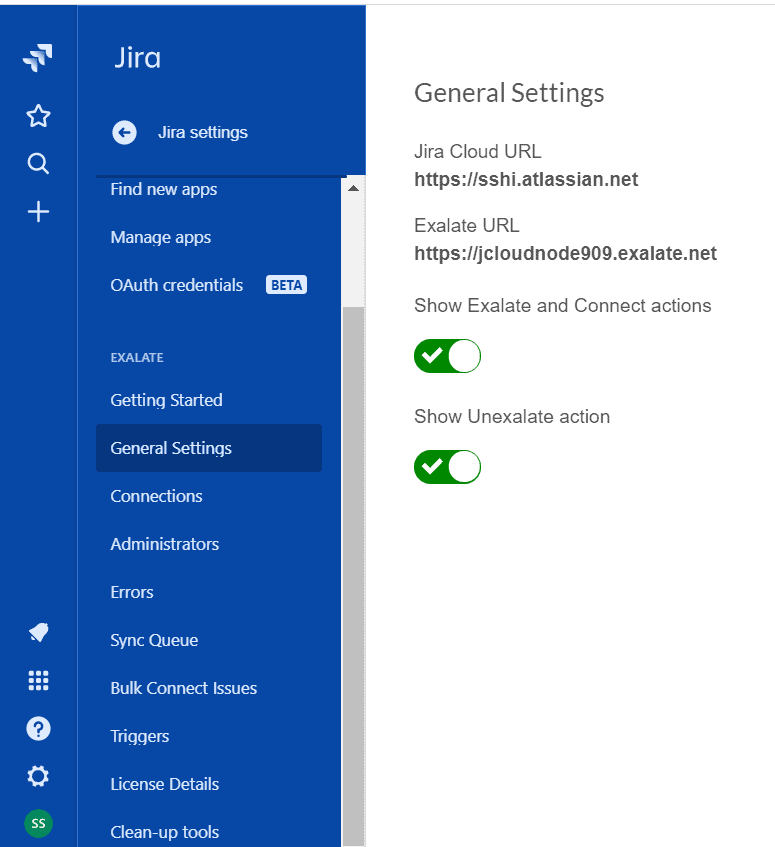
After installing, the Exalate console should be directly accessible as an Application on the ServiceNow instance:

console jira servicenow integration

At the Jira side, similar configuration options are provided as an Application as well:

integration Jira to Servicenow console

With the Exalate console you can, on the one hand, create/maintain your configuration. On the other hand, you can also view Sync Queues and check/resolve errors.

These capabilities will help to maintain the integration efficiently.

But, let’s move on to setting up a connection between your Jira and ServiceNow instance. For more details Servicenow Developer Training

Step 4: Establish a Connection between Jira and ServiceNow

1. Send an invitation code

Once the Exalate agent is installed on both ServiceNow & Jira, you need to set up connections between the two Exalate agents.

Either side can initiate the Connection or else accept the Connection invitation from the other side.

Below you have step-by-step instructions to set up the connection between the two systems:

But here’s a recap of what it boils down to.

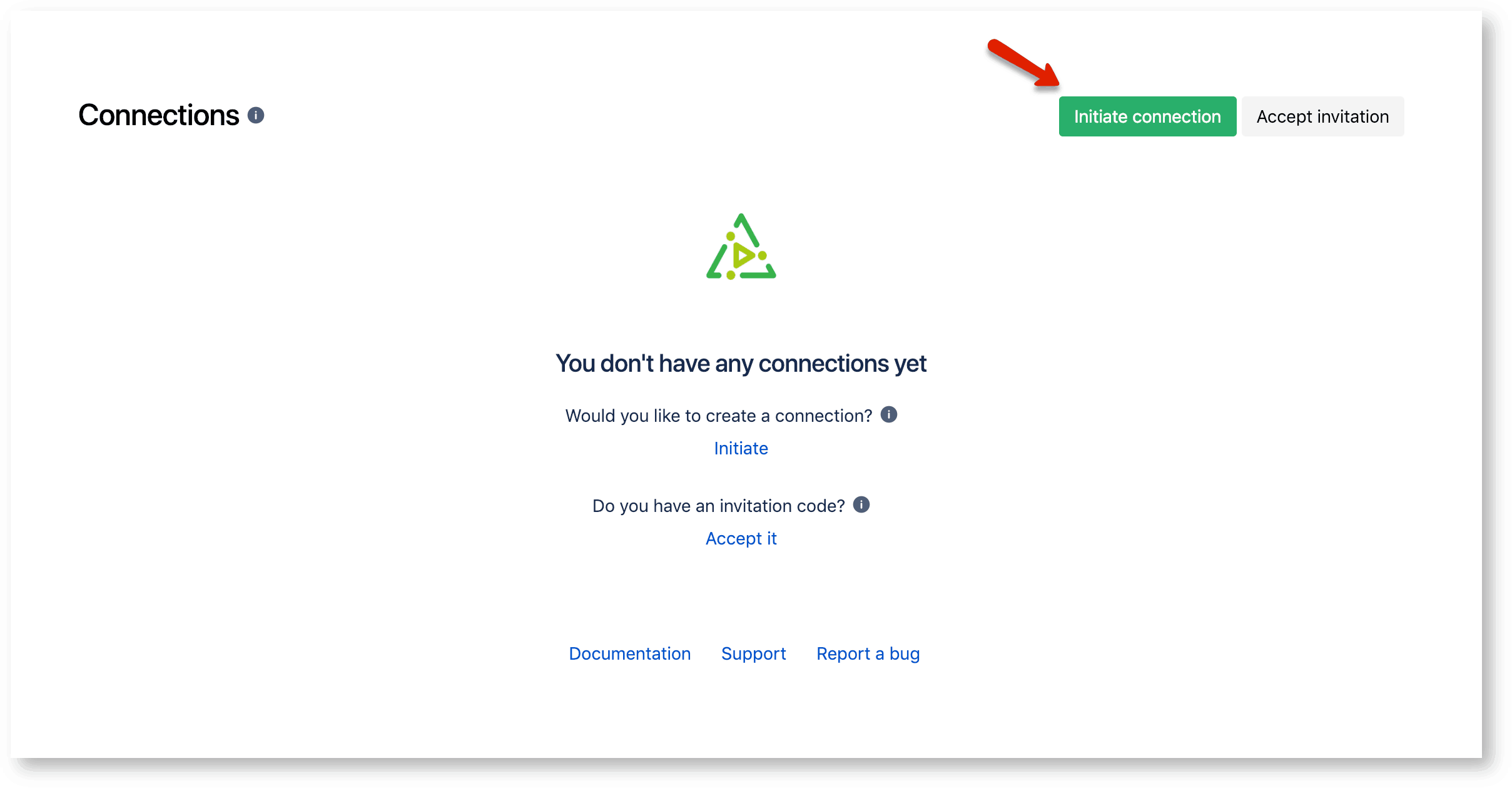
You’ll first have to Initiate a connection in the Connections tab.

initiate integration

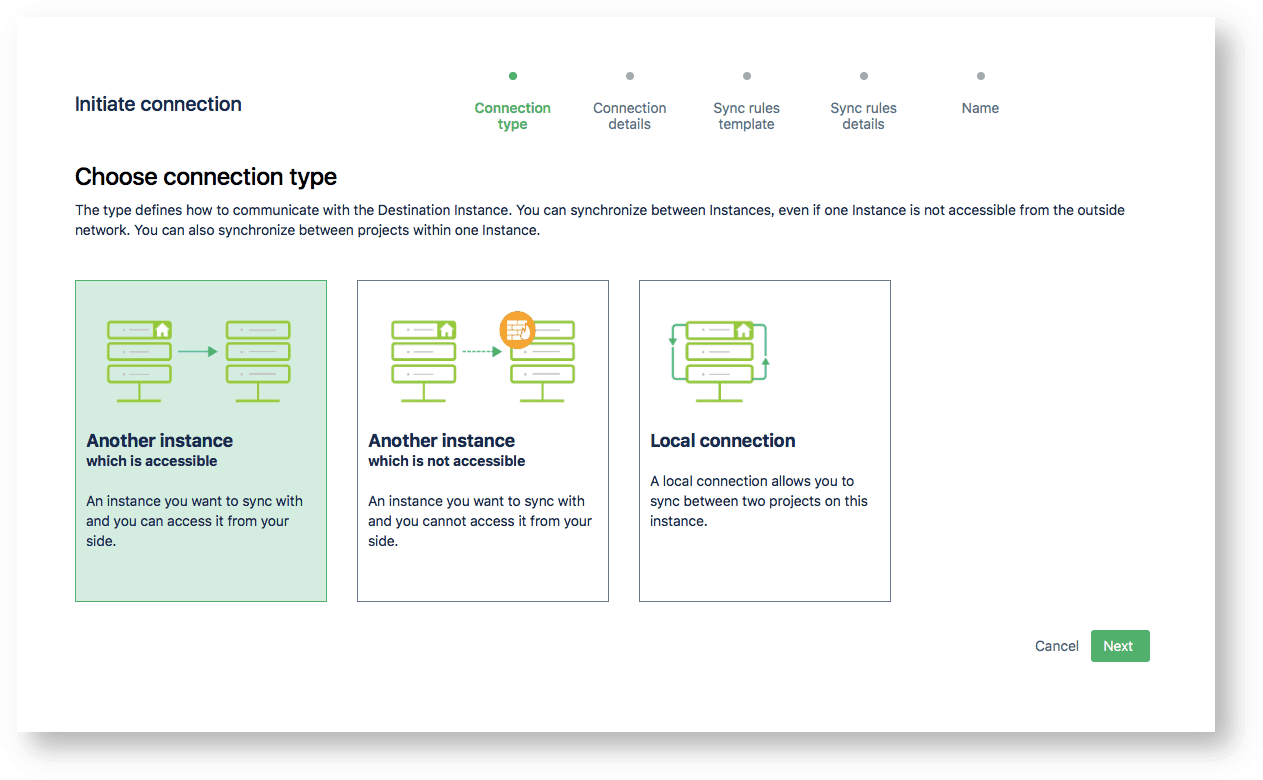
You’ll then have to choose the connection type. That’s either connecting with the other side that’s accessible or not accessible.

Connection type for integration

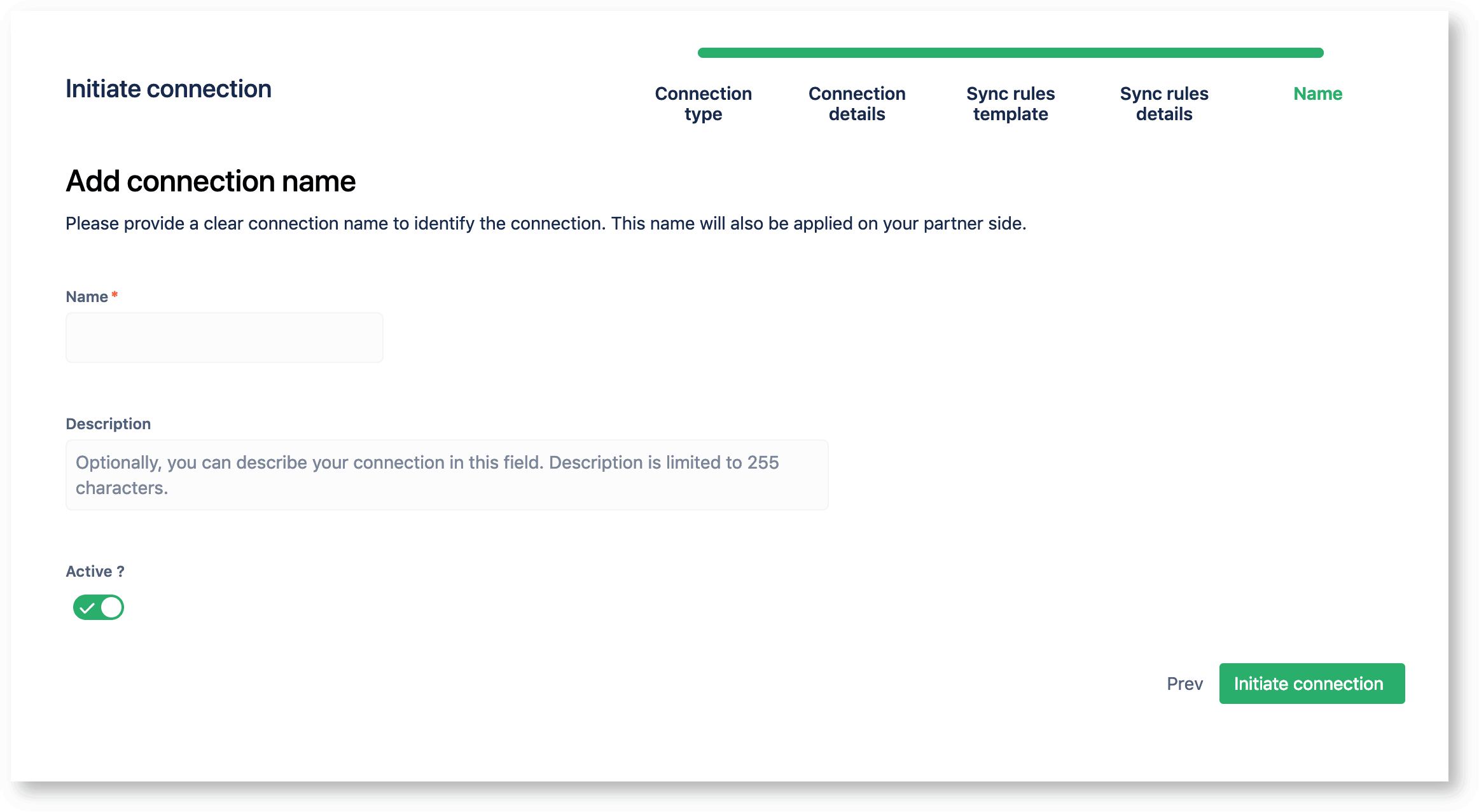
Then you’ll have to choose between the pre-existing sync rules templates. Don’t worry about configuring this or selecting the wrong one. You’ll be able to edit this later. We’ll get back to this in step 6.

The only thing left to do here is to pick a connection name and “Initiate Connection”.

Connection integration

Quick note: you can toggle the Active option on and off, which means you can prepare a connection before you have a need for it.

This will generate an invitation code. You’ll have to copy this so the other side can accept the invitation.

Invitation Code for integration

2. Accept the invitation code

That code you’ve just generated is what you will use to accept the invitation on the other side. So, move over to the other side, go to Connections and Accept Invitation.

Go ahead and past the code there:

accept integration invitation

The code will validate automatically once you’ve clicked Next.

Your connection type will be set automatically based on the invitation.

You’ll be able to configure the sync rules for this side separately, from the other side. This has been done on purpose, so each side will remain autonomous.

However, you do not have to configure this here yet. We’ll configure this later in Step 6.

After you’ve accepted the invitation and a connection has been established, we can move on to setting up a rule that will serve as a trigger for the synchronization.

Step 5: Configure your Synchronization Triggers to Determine when to Sync

Once a connection between ServiceNow and Jira is established, the main work of integration can start.

Have both sides agree on synchronization rules

At this stage, close cooperation between the Incident/Issue manager is needed to determine when an Incident at the ServiceNow side needs to create an Issue at the Jira side or vice versa.

The agreement can be defined on ServiceNow Exalate & Jira Exalate independently, allowing all possible scenarios. However, it’s also possible that you’re an admin on both sides.

Set up an automated synchronization trigger

If the process managers have determined that whenever an Incident is assigned to an Assignment group called Jira ServiceDesk, an Issue needs to be created at the Jira side.

The Trigger defined in Exalate ServiceNow looks like the following:

Servicenow Jira integration trigger

If, at the same time, they also agree that whenever an Issue at the Jira has IssueType ServiceNow, it will create an Incident at ServiceNow for teams on ServiceNow to solve.

The Trigger defined in Exalate Jira looks like the following:

Jira integration trigger for ServiceNow

Step 6: Configure your Connection to Determine the Information to Send

Once an Incident on ServiceNow fulfills the conditions defined by the Trigger, the ServiceNow Exalate will receive access to the Incident through the REST API.

Configure the outgoing sync

What information is sent to the Jira Exalate is defined in the Connection Sync Rules -> Outgoing sync.

Here’s a screenshot of what it looks like:

Edit Integration Servicenow and Jira
  • replica.<attributes> represents the message attributes. In our case, it represents Jira Exalate.
  • issue.<attribute> represents the local record attributes. In our case, it represents Servicenow Incidents.

The above example is an out-of-box, straightforward mapping. However, more complex mapping can be defined using groovy scripts in this section as well. Exalate provides a number of Script Helpers to reduce the effort to script yourself.

Configure the incoming sync

The incoming sync will determine how to interpret the information received.

The rules on how to interpret the incoming data are configured in the Connection Sync Rules as well.

On the ServiceNow Exalate, there is a distinction for when an Incident is created or updated.

In the example shown below, it is defined to store the Link to Jira Issue to the ServiceNow Incident correlation_id attribute. Incident correlation_name is set to Exalate.

Configure integration Jira ServiceNow incoming

Just like with outgoing sync rules, more complex mappings can be scripted.

Below is an example of mapping the ServiceNow Incident States with the Jira Issue Status. (Again Exalate Script Helpers can help reduce the scripting effort.)

Example Jira Servicenow Integration

To get in-depth knowledge, enroll for a live free demo on Servicenow Online Training

Workday vs. PeopleSoft

Hundreds of vendors are fighting for a piece of the HR software market. Of the companies aspiring to rule your vast and complex human resources technology, the most epic battle rages between Workday and PeopleSoft.

Both are strong choices with a loyal customer base, providing enterprises with solid, global, horizontal HR and ERP solutions.

So where do you start? To get free recommendations on the best HR software for your business, try our Product Selection Tool. It only takes five minutes for an unbiased Technology Advisor to match you with a list of five HRIS solutions that fit your needs. Click the banner below to get started.

The offer PeopleSoft couldn’t refuse

If Workday and PeopleSoft seem remarkably similar, that’s because they were both started by tech entrepreneur and multi-billionaire David Duffield.

Duffield founded PeopleSoft in 1987, but following a hostile buyout from software heavyweight Oracle in 2003, he started Workday in 2005. Seeing this as an opportunity for a fresh start, Duffield set out to create the next generation of B2B software, betting on the then-burgeoning field of software as a service (SaaS).

Designed for the cloud, Workday gained a competitive advantage over PeopleSoft by eliminating a lot of the upfront investment and maintenance fees associated with on-premise solutions. For more info Workday Training

Workday vs. PeopleSoft

Anyone facing an enterprise software upgrade must weigh costs and benefits. If your PeopleSoft implementation is particularly large and complex, you may find yourself at a fork in the road when contemplating your next upgrade.

You are not alone. Due to limited IT resources and the increased flexibility afforded by cloud technology, cloud-specific spending will grow six times faster than general IT spending through 2020.

But is the change worth it, or is this just an overhyped battle? How different are the two systems, really?

How they’re similar

PeopleSoft is backed by a global enterprise technology leader, and their focus on integrated systems has made them one of the most modern and comprehensive providers of business software in the world.

Although Workday is recognized as a leader in the HR software industry, they’re still fighting for a larger piece of the ERP market. In fact, Workday may be doing better than Oracle is comfortable admitting thanks to Workday’s customer-centric approach to doing business.

Though the feature names vary, both vendors provide a wide variety of similar suites and functionalities for large businesses.

Because of the overwhelming popularity of cloud software solutions, PeopleSoft pivoted to a cloud-based model in the last few years. While the software is available to run on any public or private cloud storage system, PeopleSoft recommends that administrators set the software up to run on the Oracle Cloud.

This proprietary storage solution holds a lot of advantages for PeopleSoft users, most importantly that it’s the only cloud storage solution that runs the PeopleSoft Cloud Manager tools, which manages updates and data connections for the tools.

Not to be outdone, Workday contracted IBM for additional storage and computing power. They use the computing giant’s cloud computing service SoftLayer for undisclosed internal processing.

And both companies are making strides into machine learning and AI to make their offering work better and faster. Get more skills from Workday Integration Training

How they’re different

There are a few applications exclusive to PeopleSoft, as well as several internal differentiators that aren’t addressed on the surface. Let’s examine them below.

Deployment and updates

One of the fundamental differences between PeopleSoft and Workday is their deployment options.

Workday is entirely engineered for cloud deployment, which means every user is always on the latest version since functionality upgrades are automatically released. There is also the potential for a lower total cost of ownership because Workday doesn’t require any on-premise hardware or infrastructure.

Another great perk here is Workday has invested in software partnerships to expand their native integration offerings—meaning you can hook their services up to Slack, Salesforce, and other necessary business tools quickly and without IT intervention.

PeopleSoft also provides cloud deployment but can be purchased as an on-premise and private cloud implementation as well. The tool recently pivoted to a Selective Adoption workflow for updates—PeopleSoft regularly offers updated versions of the tools that system administrators can download, choose the updates they prefer to run, and schedule their maintenance on their own time.

The Selective Adoption model gives administrators control over their own maintenance and update schedule but does require much more intervention that the constantly-updated Workday.

The vast difference in deployment options often leads the conversation to configuration and customization. Some companies believe that a pure SaaS solution can never be configured to fit their business needs and eliminate any solution that does not offer intense customization. Learn more skills from Workday Financials Training

When looking at the deployment differences between Workday vs. PeopleSoft, your company needs to assess its availability of IT and specialized support staff. Those with the resources to put toward dedicated PeopleSoft help will find the customization of that product worth the expense, but those with more limited resources may appreciate the native integration flexibility and ongoing support of Workday’s consistent upgrades.

CRM

Oracle offers PeopleSoft CRM, a set of customer service relationship management applications. Their CRM is tightly integrated with the rest of the PeopleSoft platform and can be tailored to fit sales, marketing, or service industries.

Business Process Management (BPM) solutions are also available within the CRM, and users can set up orders, workflows, and automate processes with the tools.

Currently, Workday does not offer a native CRM application. Instead, they’ve forged a partnership with cloud computing leader Salesforce, and offer native integrations between the two companies via the Salesforce Service Cloud.

Analytics and reporting

As business intelligence software becomes easier to use, more companies are including dashboard reporting and analytics in their products. While both PeopleSoft and Workday include analytics and reporting tools, the companies have approached the inclusion of these features differently.

PeopleSoft has worked to incorporate analytics into each of the tools, giving users access to analytic data where they’re working within PeopleSoft. The analytic power of these tools is limited to the data the company has stored in their PeopleSoft databases.

On the other hand, Workday’s Prism Analytics tools connect to outside data sources and build analytic reports within Workday. These same tools are found all across the software to bring insights right into the dashboards, but the addition of outside data elevates the feature to a business intelligence tool.

User interface

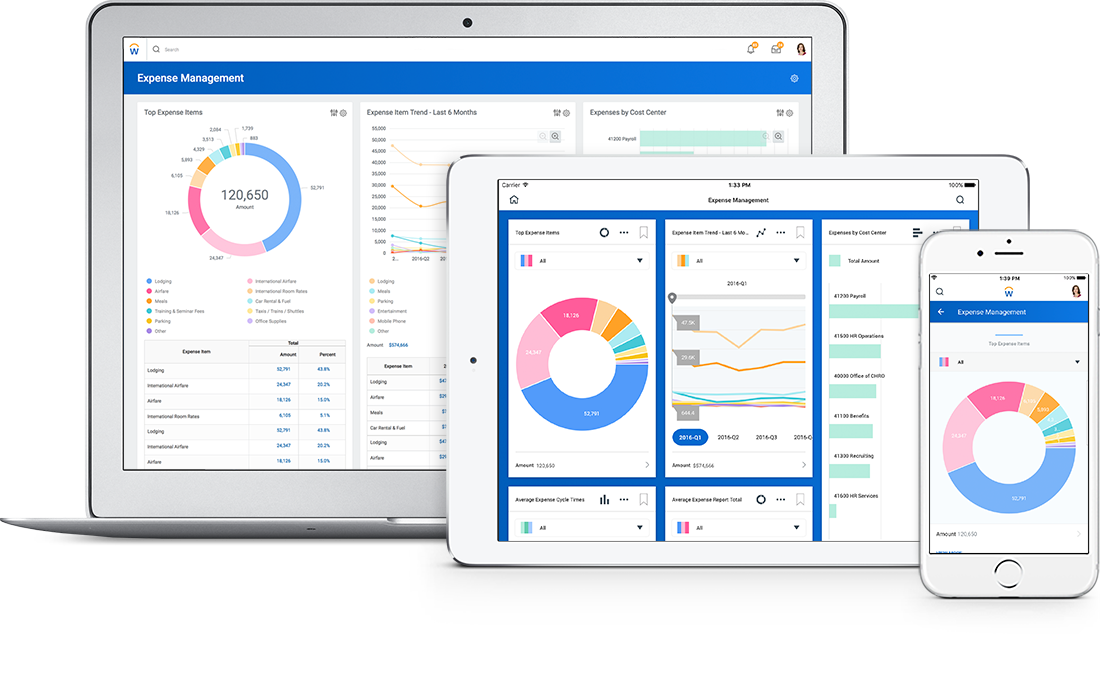
One area where Workday shines is its intuitive design. Workday was built on modern architecture and provides a consumer UI built for the web.

Workday single UI across platforms

The company works hard to provide users with a single experience across mobile, tablets, and desktop views. The UI is designed to change with the latest designs and needs of the consumers without touching the core functionality of the product. That means UI updates don’t change how you work.

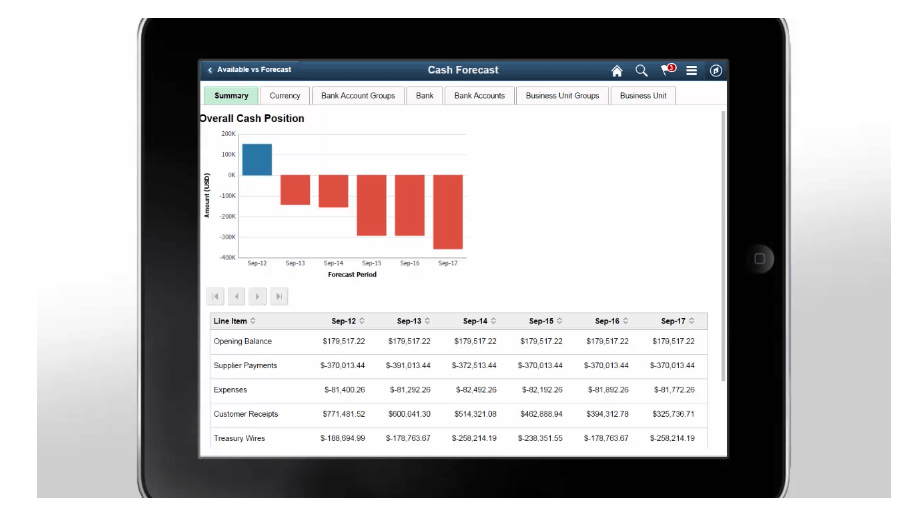
peoplesoft fluid UI

PeopleSoft started introducing the Fluid User Interface (Fluid UI) beginning in 2014, and was still rolling it out to legacy parts of the system as late as 2016. The change from an on-premise desktop app to a responsive mobile-ready environment is not only technically challenging but also requires current users to be trained on the new UI. The change was necessary, however, and makes PeopleSoft competitive with other cloud-ready software.

Final thoughts

Workday is an innovative platform built for the modern workforce, and their technology aligns with the current trends in IT. Their beginning as an HCM platform provides human resources professionals with a system designed with the workforce and financials in mind, while their continuous updates and enterprise focus makes them a viable choice for a variety of companies.

To get in-depth knowledge, enroll for a live free demo on Workday Online Training

EAI Service Bus: Which One to Choose

By using APIs, one can modularize an EAI into the system and process and experience APIs. Choosing the right EAI service bus solution for your project is imperative.

Enterprise Application Integration (EAI) enables the integration of various software applications, distributed applications, hardware systems, and legacy systems with the help of various technologies and services. Service-oriented architecture, which allows us to provide services through a communication protocol like HTTP(S) or JMS, is widely used in EAI projects.

In recent years, we have moved from SOAP-based web services to microservices — and these days, APIs are the new way we can provide services to various applications. The reason to move to APIs was simple: By using APIs, one can modularize an EAI into the system and process and experience APIs. for more info mulesoft training

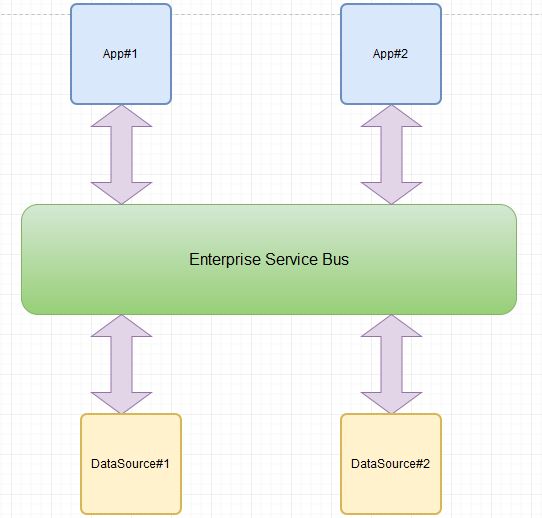
Various ESBs were developed over time such as Tibco BW, Websphere Message broker, and, more recently, Mule ESB. Major advantages of using an ESB are that they are lightweight, scalable, distributable, and SOA-friendly.

Image title

Let’s discuss which product to choose for EAI.

Tibco is a broadly integrated product and is widely used in telecom and banking projects. It is also highly expensive and complex to use. Tibco BW 5.x had been used in the industry, and now, Tibco has launched BW 6 — which comes with an Eclipse-based IDE. Tibco is not that lightweight and it has performance issues if real-time traffic needs high throughputs. Tibco is also industry-wide accepted, has a lot of partners, and provides all of the latest plugins, like Twitter notifications.

Red Hat JBoss Fuse is lightweight, is flexible, and has cloud support. JBoss Fuse connectors allow you to connect to various applications and it also claims to have rapid integration. Fuse needs a solid Red Hat server foundation for extended performance. JBoss Fuse IDE along with Studio is a solid platform for development and tooling. It is open source, so licensing costs are a little lower compared to other products.

MuleSoft combines SOAs, SaaS, and APIs. It uses open messaging and integration standards. It is also open source, but support costs are extra.

With its developer community base on the rise, it has good online support. Still, it is very complex to use. It takes a lot of time implement a relatively complex integration solution. learn more from mule training

It is integration-friendly and transformation is easy with the in-house developed DataWeave technology.ESB Products

So, to decide what to use, answer the below questions.

  • How many integration points are there?
  • How much is the budget for product and support?
  • How much time is needed to complete the integration?
  • Which applications do you need to integrate and which protocol should you use to communicate?
  • Does the project need to be scaled in the future?
  • Have you considered performance, security, and reliability?

Knowing about your options and considering these questions will help you make a wise choice about your EAI service bus solution.

To get in-depth knowledge, enroll for a live free demo on Mulesoft Online Training

Configure Workday for automatic user provisioning

The Azure Active Directory user provisioning service integrates with the Workday Human Resources API in order to provision user accounts. Azure AD uses this connection to enable the following user provisioning workflows:

  • Provisioning users to Active Directory – Provision selected sets of users from Workday into one or more Active Directory domains.
  • Provisioning cloud-only users to Azure Active Directory – In scenarios where on-premises Active Directory is not used, users can be provisioned directly from Workday to Azure Active Directory using the Azure AD user provisioning service.
  • Write back email address and username to Workday – The Azure AD user provisioning service can write the email addresses and username from Azure AD back to Workday.

What human resources scenarios does it cover?

The Workday user provisioning workflows supported by the Azure AD user provisioning service enable automation of the following human resources and identity lifecycle management scenarios: Learn more skills from Workday training

  • Hiring new employees – When a new employee is added to Workday, a user account is automatically created in Active Directory, Azure Active Directory, and optionally Office 365 and other SaaS applications supported by Azure AD, with write-back of the email address to Workday.
  • Employee attribute and profile updates – When an employee record is updated in Workday (such as their name, title, or manager), their user account will be automatically updated in Active Directory, Azure Active Directory, and optionally Office 365 and other SaaS applications supported by Azure AD.
  • Employee terminations – When an employee is terminated in Workday, their user account is automatically disabled in Active Directory, Azure Active Directory, and optionally Office 365 and other SaaS applications supported by Azure AD.
  • Employee rehires – When an employee is rehired in Workday, their old account can be automatically reactivated or re-provisioned (depending on your preference) to Active Directory, Azure Active Directory, and optionally Office 365 and other SaaS applications supported by Azure AD.

Who is this user provisioning solution best suited for?

This Workday user provisioning solution is ideally suited for:

  • Organizations that desire a pre-built, cloud-based solution for Workday user provisioning
  • Organizations that require direct user provisioning from Workday to Active Directory, or Azure Active Directory
  • Organizations that require users to be provisioned using data obtained from the Workday HCM Training module
  • Organizations that require joining, moving, and leaving users to be synced to one or more Active Directory Forests, Domains, and OUs based only on change information detected in the Workday HCM module
  • Organizations using Office 365 for email

Solution Architecture

This section describes the end-to-end user provisioning solution architecture for common hybrid environments. There are two related flows:

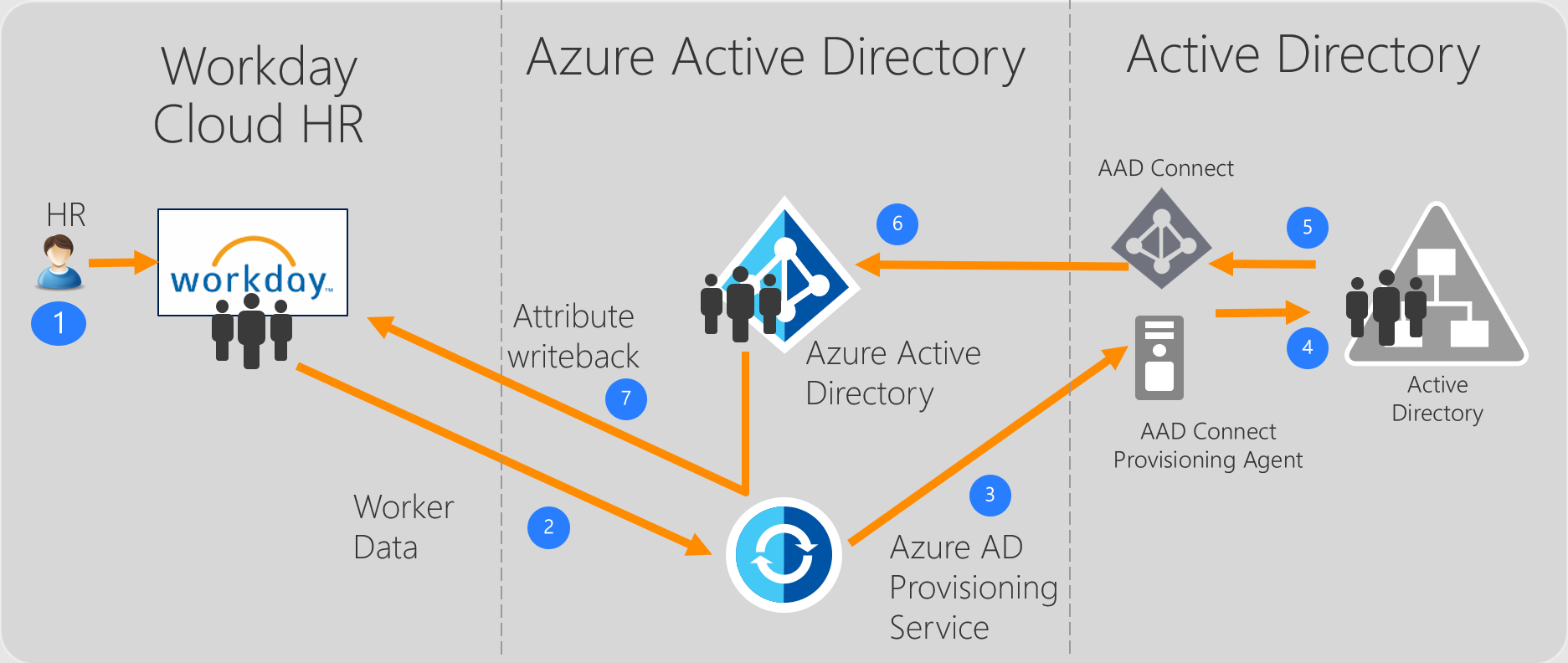
  • Authoritative HR Data Flow – from Workday to on-premises Active Directory: In this flow worker events (such as New Hires, Transfers, Terminations) first occur in the cloud Workday HR tenant and then the event data flows into on-premises Active Directory through Azure AD and the Provisioning Agent. Depending on the event, it may lead to create/update/enable/disable operations in AD.
  • Email and Username Writeback Flow – from on-premises Active Directory to Workday: Once the account creation is complete in Active Directory, it is synced with Azure AD through Azure AD Connect and email and username attribute can be written back to Workday.
Overview

End-to-end user data flow

  1. The HR team performs worker transactions (Joiners/Movers/Leavers or New Hires/Transfers/Terminations) in Workday HCM
  2. The Azure AD Provisioning Service runs scheduled synchronizations of identities from Workday HR and identifies changes that need to be processed for sync with on-premises Active Directory.
  3. The Azure AD Provisioning Service invokes the on-premises Azure AD Connect Provisioning Agent with a request payload containing AD account create/update/enable/disable operations.
  4. The Azure AD Connect Provisioning Agent uses a service account to add/update AD account data. Get more skills from Workday Integration Training
  5. The Azure AD Connect / AD Sync engine runs delta sync to pull updates in AD.
  6. The Active Directory updates are synced with Azure Active Directory.
  7. If the Workday Writeback connector is configured, it writes back email attribute and username to Workday, based on the matching attribute used.

Planning your deployment

Before beginning your Workday integration, check the prerequisites below and read the following guidance on how to match your current Active Directory architecture and user provisioning requirements with the solution(s) provided by Azure Active Directory. A comprehensive deployment plan with planning worksheets is also available to assist you in collaborating with your Workday integration partner and HR stakeholders.

Prerequisites

The scenario outlined in this tutorial assumes that you already have the following items:

  • A valid Azure AD Premium P1 or higher subscription license for every user that will be sourced from Workday and provisioned into either on-premises Active Directory or Azure Active Directory.
  • Azure AD global administrator access to configure the provisioning agent
  • A Workday implementation tenant for testing and integration purposes
  • Administrator permissions in Workday to create a system integration user, and make changes to test employee data for testing purposes
  • For user provisioning to Active Directory, a server running Windows Server 2012 or greater with .NET 4.7.1+ runtime is required to host the on-premises provisioning agent
  • Azure AD Connect for synchronizing users between Active Directory and Azure AD

Selecting provisioning connector apps to deploy

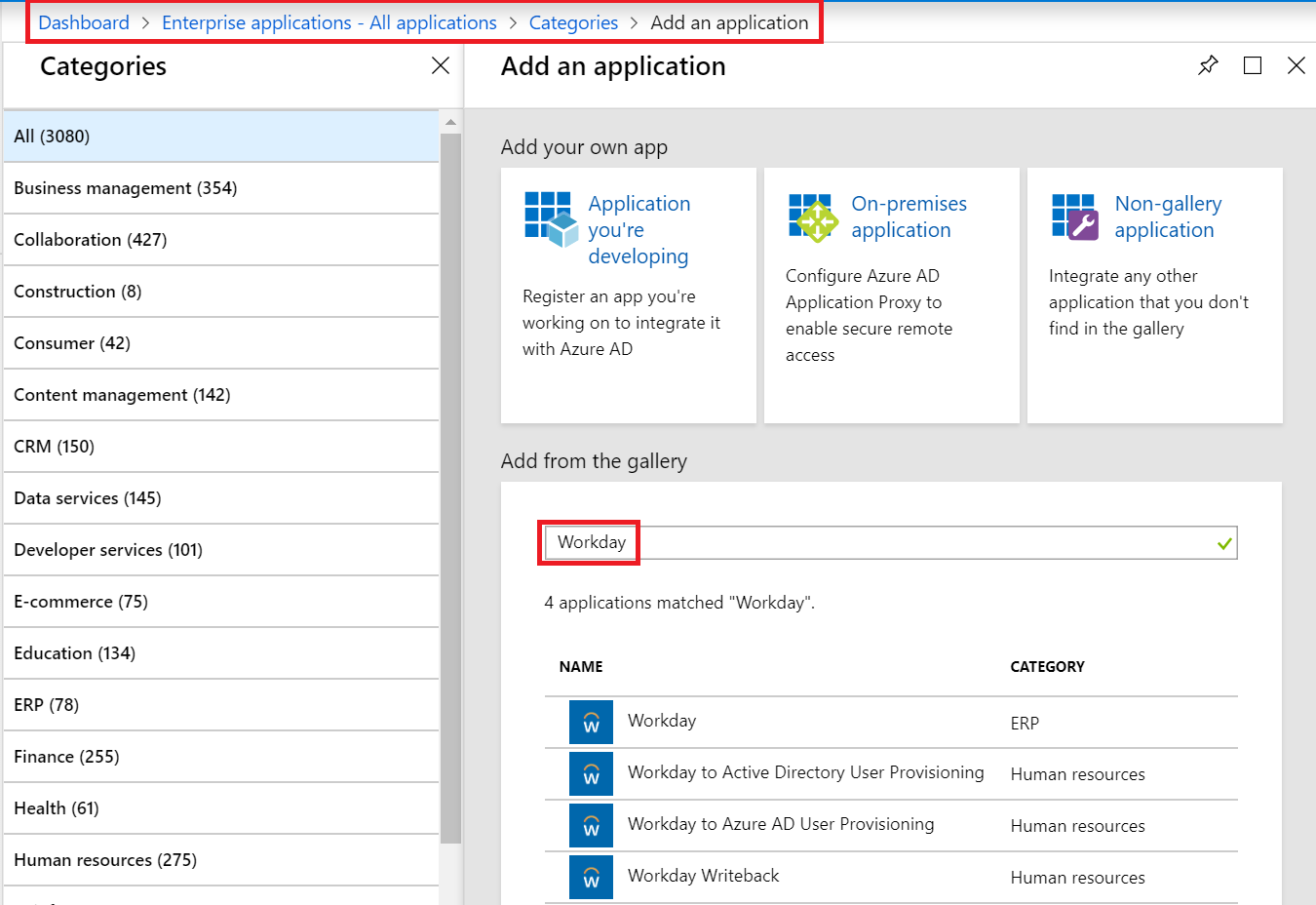
To facilitate provisioning workflows between Workday and Active Directory, Azure AD provides multiple provisioning connector apps that you can add from the Azure AD app gallery:

Azure AD App Gallery
  • Workday to Active Directory User Provisioning – This app facilitates user account provisioning from Workday to a single Active Directory domain. If you have multiple domains, you can add one instance of this app from the Azure AD app gallery for each Active Directory domain you need to provision to.
  • Workday to Azure AD User Provisioning – While Azure AD Connect is the tool that should be used to synchronize Active Directory users to Azure Active Directory, this app can be used to facilitate provisioning of cloud-only users from Workday to a single Azure Active Directory tenant.
  • Workday Writeback – This app facilitates write-back of user’s email addresses from Azure Active Directory to Workday.

 Tip

The regular “Workday” app is used for setting up single sign-on between Workday and Azure Active Directory.

Use the decision flow chart below to identify which Workday provisioning apps are relevant to your scenario. Decision Flowchart

Use the table of contents to go to the relevant section of this tutorial.

Planning deployment of Azure AD Connect Provisioning Agent

 Note

This section is relevant only if you plan to deploy the Workday to Active Directory User Provisioning App. You can skip this if you are deploying the Workday Writeback or Workday to Azure AD User Provisioning App.

The Workday to AD User Provisioning solution requires deploying one or more Provisioning Agents on servers running Windows 2012 R2 or greater with minimum of 4 GB RAM and .NET 4.7.1+ runtime. The following considerations must be taken into account before installing the Provisioning Agent:

  • Ensure that the host server running the Provisioning Agent has network access to the target AD domain
  • The Provisioning Agent Configuration Wizard registers the agent with your Azure AD tenant and the registration process requires access to *.msappproxy.net over the TLS port 443. Ensure that outbound firewall rules are in place that enable this communication. The agent supports outbound HTTPS proxy configuration.
  • The Provisioning Agent uses a service account to communicate with the on-premises AD domain(s). Prior to installation of the agent, it is recommended that you create a service account with domain administrator permissions and a password that does not expire.
  • During the Provisioning Agent configuration, you can select domain controllers that should handle provisioning requests. If you have several geographically distributed domain controllers, install the Provisioning Agent in the same site as your preferred domain controller(s) to improve the reliability and performance of the end-to-end solution
  • For high availability, you can deploy more than one Provisioning Agent and register it to handle the same set of on-premises AD domains.

 Important

In production environments, Microsoft recommends that you have a minimum of 3 Provisioning Agents configured with your Azure AD tenant for high availability.

Integrating with multiple Active Directory domains

 Note

This section is relevant only if you plan to deploy the Workday to Active Directory User Provisioning App. You can skip this if you are deploying the Workday Writeback or Workday to Azure AD User Provisioning App.

Depending on your Active Directory topology, you will need to decide the number of User Provisioning Connector Apps and number of Provisioning Agents to configure. Listed below are some of the common deployment patterns that you can refer to as you plan your deployment.

Deployment Scenario #1 : Single Workday Tenant -> Single AD domain

In this scenario, you have one Workday tenant and you would like to provision users to a single target AD domain. Here is the recommended production configuration for this deployment.

To get in-depth knowledge, enroll for a live free demo on Workday Online Training

Python-Tableau Integration

Tableau released the beta version of TabPy back in December 2016 which enables the evaluation of Python code from within a Tableau Workbook. Thus, we can leverage the power of large number of Machine Learning libraries to generate and visualize the predictions in Tableau.

TabPy runs over Anaconda Enviroment. Hence, we can use any Python Libraries in our scripts such as scipy, scikit-learn, keras, tensorflow etc.

In a nutshell, you can create a calculation that will contain a Python script. Initial simple setup is required to point Tableau to the Python instance, and then when the view is rendered in Tableau the script will be passed to Python and the respective returned data is displayed in Tableau.

Prerequisites for setting up TabPy —

  1. Windows/Mac/Linux system.
  2. Tableau Desktop 10.1 (Windowd/Mac)
  3. Python v2.6 or above
  4. Tableau-Python server (TabPy)

Steps —

  • Go to TabPy repository on GitHub by Tableau from Tableau Training
  • Click on clone or download button on upper right corner.
  • Download the ZIP and extract it.
  • Run setup.bat if you are using Windows and setup.sh if you are using Linux or Mac.

Now sit back and relax as the command prompt/terminal will download and install Anaconda environment alongwith creating Tableau-Python server.

  • Once installed, you’ll get the following message. Here, TabPy has started running on localhost and is listening to port 9004.

You can also start the TabPy later by going to the respective anaconda installation directory and running the startup.bat file.

Now, we need to configure Tableau to connect to the TabPy server.

  • Go to Tableau Desktop > Help > Settings and Performance > Manage External Service Connection. Enter the server name and port number where your Tableau Server is running. Click OK. Learn more skills from Tableau Server Training
  • A success message will be displayed and your Tableau is now connected to TabPy Server.

Using TabPy to Run Python in Tableau —

Following are the steps to run a basic python script in Tableau.

  • Import your data to Tableau (We will be using IRIS Dataset in our example).
  • Create a calculated field.
  • For now let us create a Naive Bayes model from the input data and predict the same data using the fitted model. Write the following code in the calculated field.
SCRIPT_REAL(“
import numpy as np
from sklearn.naive_bayes import GaussianNB
 
# create the model
model = GaussianNB()
 
# transform input data 
data_x = np.transpose(np.array([_arg1, _arg2, _arg3, _arg4]))
data_y = np.array(_arg5)
 
# fit the model
model.fit(data_x, data_y)
 
# predict the category for input data
predicted_category = model.predict(data_x)
 
# transform output
return list(np.round(predicted_category, decimals=2))
“, ATTR([Petal Length]), 
 ATTR([Petal Width]), 
 ATTR([Sepal Length]), 
 ATTR([Sepal Width]), 
 ATTR([Category]))

_arg defines the individual input arguments (columns in the original data). In this example all of the input arguments are vectors. We have to use the “ATTR()”, because SCRIPT_XX requires some sort of aggregation function although we are not working with aggregated data. Also for a call to Python to be successful, the script requires the return argument.

To visualize the output, we will compare the original categories with the predicted categories from the model.

Source : https://blog.alookanalytics.com/2017/02/14/advanced-analytics-with-python-and-tableau/

However, this method is only for testing/playing around, while for production use you should use deployed functions as mentioned in the Tableau client documentation and define them as endpoints.

Once deployed, all it takes to run a machine-learning model is a single line of Python code in Tableau regardless of model type or complexity. You can estimate the probability of customer churn using logistic regression, multi-layer perceptron neural network, or gradient boosted trees just as easily by simply passing new data to the model.

Using published models has several benefits. Complex functions become easier to maintain, share, and reuse as deployed methods in the predictive-service environment. You can improve and update the model and code behind the endpoint while the calculated field keeps working without any change. And a dashboard author does not need to know or worry about the complexities of the model behind this endpoint.

There are plethora of other capabilities. Tableau can also be connected to additional data sources and can create real-time dashboards that are constantly updated.

To get in-depth knowledge, enroll for a live free demo on Tableau Online Training

Design a site like this with WordPress.com
Get started